
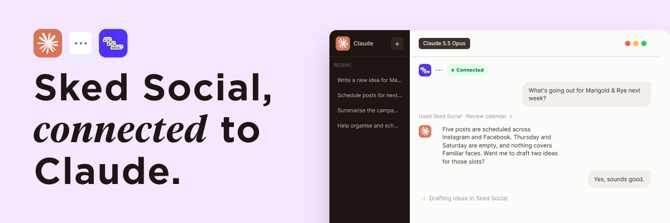
Connect once, then ask in plain language: what is on the calendar this week, where are the gaps, which posts are waiting on a client. Claude reads your real calendar, Idea Planner, Brand Kit and Inbox. Claude has the same tools that you do, can create content, read change requests, update posts and statuses and more.
What you can ask Claude to do
Claude can work across five parts of Sked Social. Here are example requests for each.
|
Area |
Ask Claude |
What happens |
|---|---|---|
|
Plan |
"What does my calendar look like for the next two weeks?" |
Claude reads the calendar, lists what is scheduled and points out the empty days. |
|
Create |
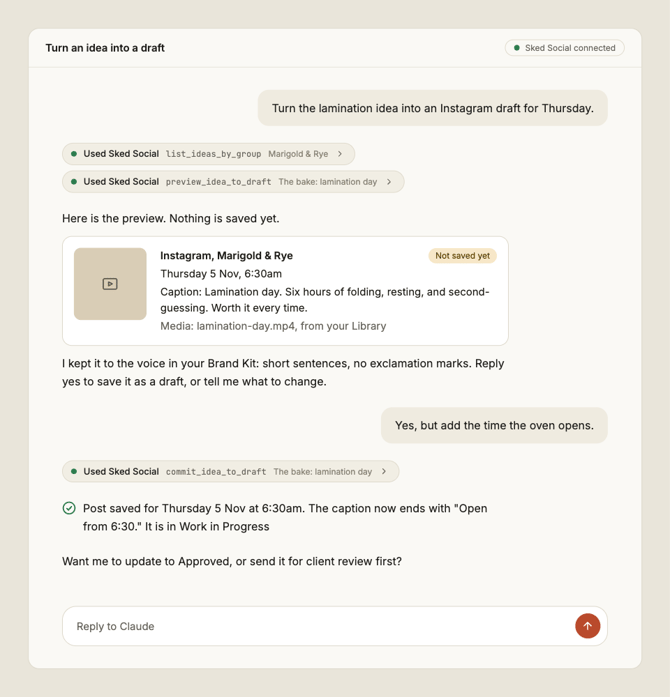
"Turn the lamination idea into an Instagram draft for Thursday." |
Claude previews the draft, then saves it once you say yes. |
|
Approve |
"What is waiting on approval? Apply the change request on the Danish post." |
Claude reads the client comment, edits the copy and updates the status. |
|
Inbox |
"Any negative comments on Instagram? Draft replies for the first two." |
Claude saves reply drafts in your Inbox. It never sends them. |
|
Analyse |
"Summarise last month for Marigold & Rye." |
Claude reports reach, interactions and saves against the month before. |
You can also ask it to set up a Brand Kit, check a caption against your tone of voice, or find the best time to post for an Instagram account.
Connect Claude in three steps
Setup takes a few minutes and uses your normal Sked Social login. There is no API key to copy.
- In Claude, add a custom connector and paste the Sked Social address:
https://app-mcp.skedsocial.com/mcp - Sign in with your Sked Social account and approve access.
- Start a chat and ask, "What does my calendar look like this week?"
Claude shows a small "Used Sked Social" note each time it reaches into your account, so you can always see when it is working. The full walkthrough, with screenshots, is in our help centre guide, Connect Claude to Sked Social.
Go further with skills and routines
A skill is a saved set of instructions that tells Claude how to do a job the way you want it done. It decides which Sked Social tools to call, in what order, and what a good result looks like.
We publish a starter plugin, sked-skills, with nine ready-made skills. They cover jobs like reviewing your calendar, summarising a brand, setting up a Brand Kit, working through ideas and importing ideas from a CSV. Install it from the DialogueConsulting/skedsocial-skills marketplace.
Then make your own. Three examples we built while testing:
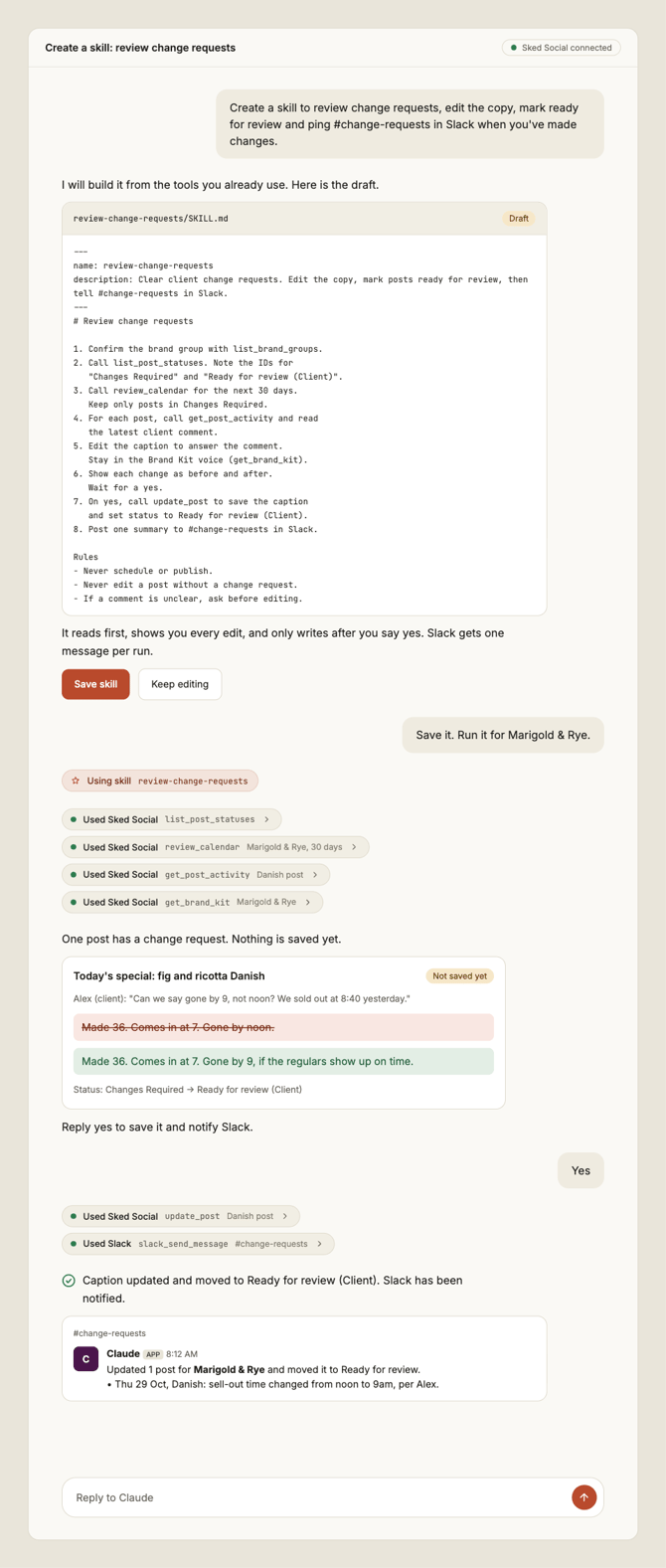
- Review change requests. Reads posts marked Changes Required, edits the copy, moves them to Ready for review and posts a summary in your #change-requests Slack channel.
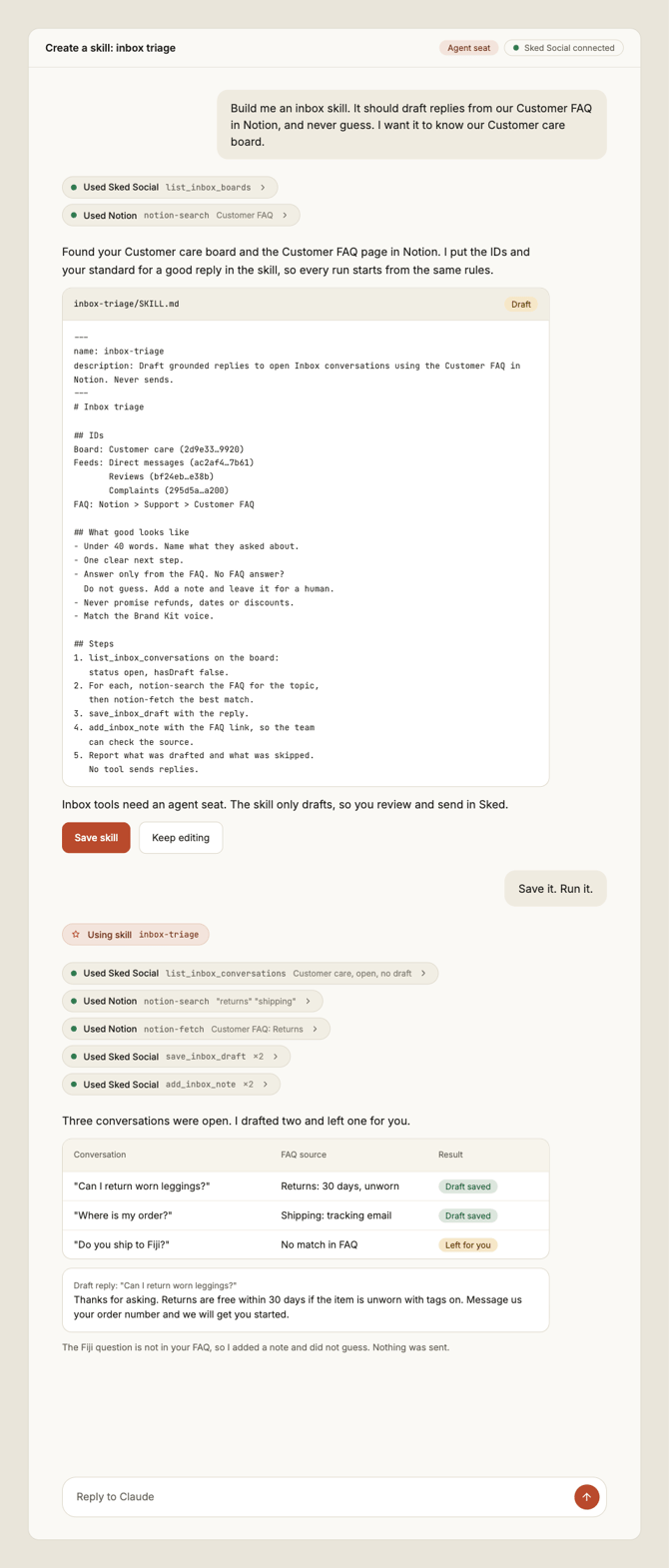
- Inbox triage. Drafts replies to open conversations using your Customer FAQ in Notion. If the FAQ has no answer, it leaves the conversation for a person instead of guessing.
- Sheet to ideas. Reads your content plan from Google Sheets and adds the ready rows to the Idea Planner. Save it as a routine and it runs every morning at 8:00am.
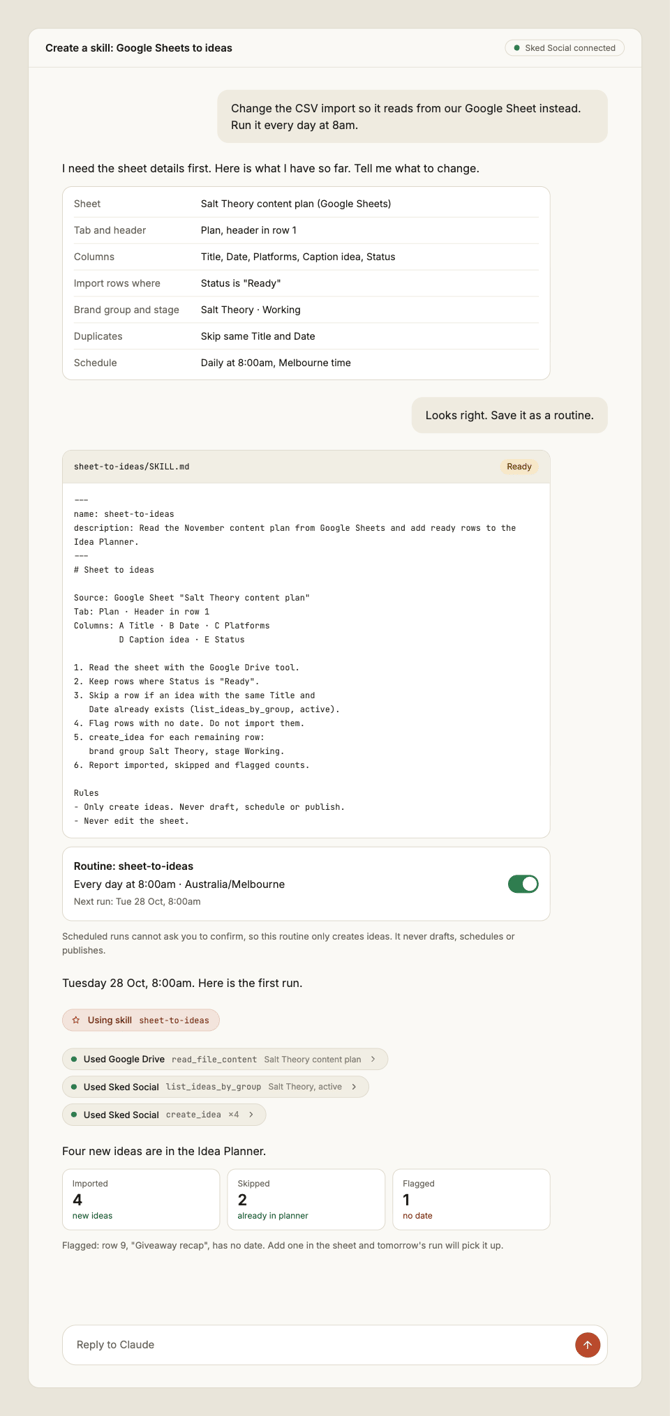
Skills that write always preview first and wait for your yes, but routines offer the flexibility of auto approving write actions for unnatended actions. Our guide, Create your own agents with Sked Social skills, walks through each step.
You stay in control
Claude proposes, and you decide. Four rules apply to every connection.
- Preview before saving. Claude shows a draft, an edit or a status change first, marked "Not saved yet", and waits for your yes.
- Set tool access for your team. MCP tools can be enabled/disabled for your team in your Claude Organization settings.
- Nothing is sent. Inbox tools save reply drafts only. Replies go out when you review and send them in Sked Social.
- Everything is logged. Changes made through Claude appear in post activity as "[Your name]'s Agent".
- You choose who has access. Connection uses your own login, and agent seats are assigned person by person.
ChatGPT support is on the way, so you can connect the same account from there.
Get startedConnect Claude, ask about your calendar, then add a skill when you are ready. Our help centre has four guides:
- Connect Claude to Sked Social
- Agent seats: what they are and how to manage them
- Getting started with Sked Social and Claude
- Create your own agents with Sked Social skills