
This guide covers setting up Ideas import from Google Sheets. (Google Sheets can also be used as a Library source for media — that's covered in a separate article.)
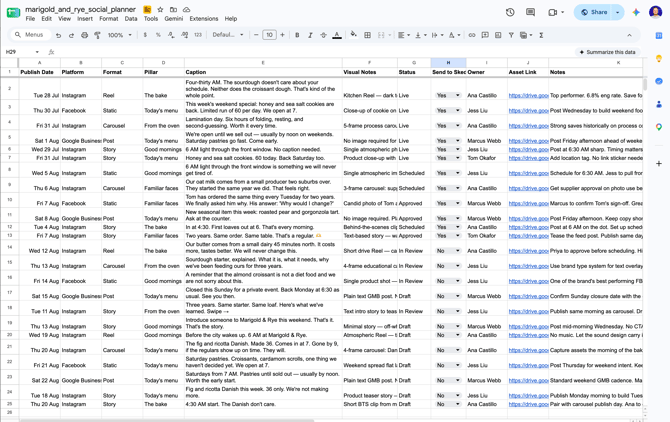
Before you startHave your Google Sheet ready with one row per idea and clear column headers in row 1. A typical sheet looks like this:
|
Publish Date |
Platform |
Format |
Pillar |
Caption |
Visual Notes |
Status |
Send to Sked |
Owner |
Asset Link |
Notes |
|---|
You don't need this exact layout — the setup below lets you map whatever columns your sheet already has — but it helps to know your column names ahead of time.
Step 1: Open the integration
- Click your profile icon in the top right, then choose Settings.
- Select Integrations from the settings menu.
- Under Sources, find Google Sheets and click Manage.
Step 2: Choose the brand and project
On the Google Sheets page, select the Ideas tab (it's selected by default) and go to Import ideas from Google Sheets.
- Under Source, choose the Brand group the sheet belongs to.
- In the Projects list, tick the project(s) you want ideas synced into. Each project you check gets its own column mapping below.
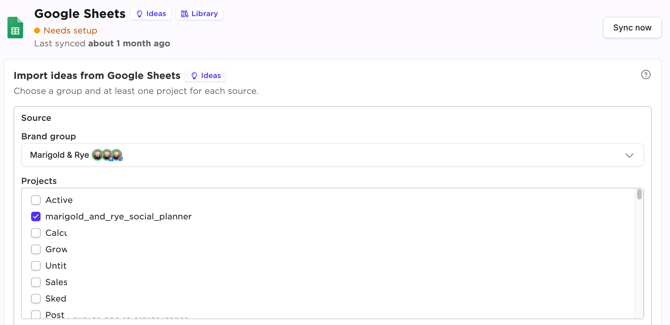
You need to select at least one project before you can configure a source.
Step 3: Map your sheet's columns
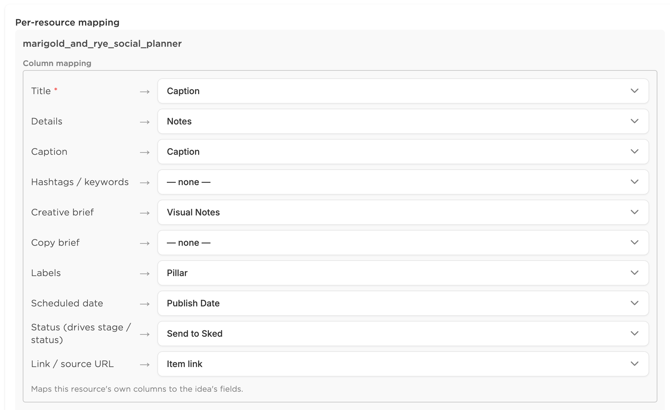
Expand Advanced to reveal Per-resource mapping for each project you selected. This is where you tell Sked which column in your sheet feeds which field on the Idea.
Under Column mapping, use the dropdowns to match each Sked field to the matching column header from your sheet:
|
Sked field |
What it's for |
|---|---|
|
Title * |
Required. The idea's name in Sked. |
|
Details |
Longer internal notes or a summary of the idea. |
|
Caption |
The post copy. |
|
Hashtags / keywords |
Hashtags or keywords for the post. |
|
Creative brief |
Visual direction for whoever creates the asset. |
|
Copy brief |
Direction for whoever writes the copy. |
|
Labels |
Maps to a Sked label/pillar. |
|
Scheduled date |
The date the idea is intended to publish. |
|
Status (drives stage / status) |
The sheet column that determines what stage the idea lands in — see Step 5. |
|
Link / source URL |
A link back to the source row or asset. |
Leave any field you don't have a matching column for set to — none —.
Step 4: Set the sync filter

Under Sync to Sked, choose the column that acts as a gate for which rows get imported — for example, a "Send to Sked" checkbox column.
- Only rows where that column is ticked (a checkbox, or the value TRUE / yes / 1 / x) are imported.
- Anything else — including a blank cell — is skipped.
- Leave this set to don't filter if you want every row in the sheet imported.
This is useful if your team drafts ideas in the sheet before they're ready to move into Sked — nothing syncs until that column is marked.
Step 5: Set status routing (Optional)
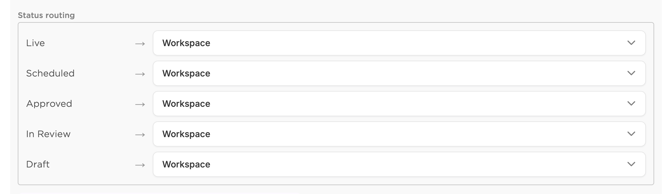
Under Status routing, map the values your sheet uses in its status column (for example Live, Scheduled, Approved, In Review, Draft) to where each one should land in Sked Ideas.
This lets your sheet's existing workflow stages carry over automatically — an idea marked "In Review" in the sheet can land in a different place in Sked than one marked "Draft," for instance.
Note: This part of the workflow is optional and doesn't suit all creation processes. It can be ignored if these steps don't fit with your spreadsheet setup
Step 6: Check the example, then sync
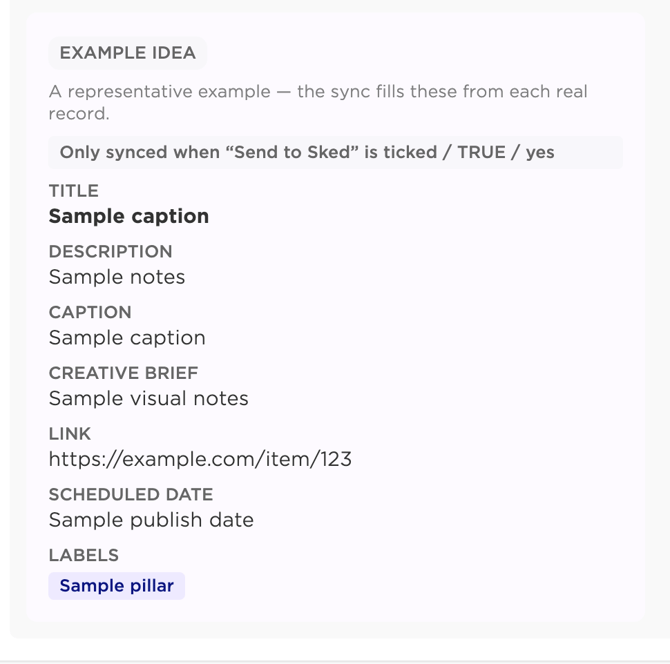
Scroll down to Example idea — a live preview showing how one of your actual rows will map into Sked's fields, based on the mapping you just set up. Use it to double-check you've mapped the right columns before your real data syncs.
When you're happy with the setup, click Sync now (top right of the page) to run the import. Sked will also keep syncing automatically going forward based on your sheet's last-synced status shown at the top of the page.
Step 7 : Repeat for each brand group or source sheet you need to setup for import.
Tips- You can revisit this page any time to change the brand group, project, column mapping, or filters — changes apply on the next sync.
- If a field you expect isn't showing up as an option in a mapping dropdown, check that your sheet has a header for it in row 1.
- Use the Sync to Sked filter column if you don't want every row in the sheet to become an Idea immediately — it's the easiest way to keep a sheet as a shared drafting space while controlling exactly what reaches Sked.