
Before you start
Make sure your Monday.com board has the columns you want to bring across. The integration maps columns by name, so clear, consistent column names make setup much easier.
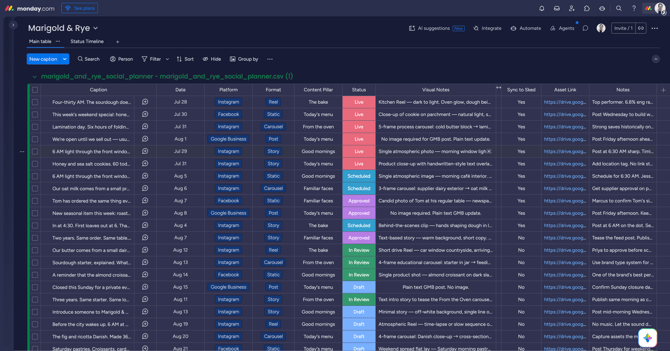
You'll also need a dedicated column in your board to control which items sync to Sked. A simple yes/no or checkbox column works well for this. We call it the Sync to Sked column — more on that in Step 4.
Step 1: Connect your Monday.com account
- Select your profile icon in the top-right corner and choose Settings
- Select Integrations from the left-hand navigation
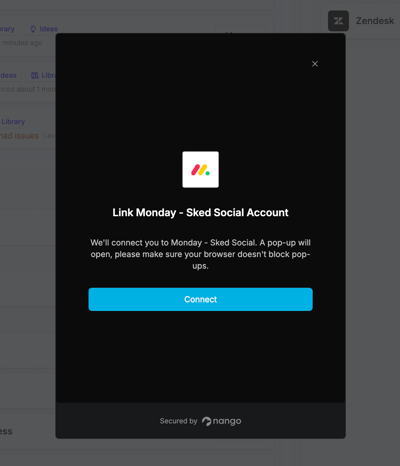
- Find Monday.com and select Connect
- Sign in to your Monday.com account in the OAuth window that opens and grant access
- You'll land back on the page to finish setup
Step 2: Set up your source
With your Monday.com account connected, tell Sked where to pull from and where to send it.
Select your destination brand group — the Sked brand group your ideas will be added to.
Select your source board — choose the Monday.com board you want to sync from. Only boards in your connected account will appear.
Step 3: Map your fields
Field mapping tells Sked how to translate your column data into idea properties. You only need to set this up for the fields you want to bring across.
Recommended project-level mappings:
| Monday column | Sked field |
|---|---|
| Title | Title |
| Description | Description |
| Asset link | Link |
Asset links come across as URLs, not files. If you want actual media files in your Sked library, set up a Google Drive integration alongside this one.
Per-item mappings:
Each item in your board becomes one idea. Map these columns to control how each idea gets populated:
| Monday column | Sked field | Notes |
|---|---|---|
| Caption | Title | Ideas need a title, and caption works well here |
| Caption | Caption | Map caption to caption too, so it carries across when an idea becomes a post |
| Notes | Details | General notes, copy direction, or context |
| Visual notes | Creative brief | Art direction or media guidance |
| Content pillar | Labels | See the pro tip below |
| Date | Scheduled date | The intended publish date |
<aside>
💡
Pro tip: Sked matches labels by name. If your content pillar dropdown values in Monday.com match your label names in Sked exactly, they'll map automatically. The easiest way to make sure they do: use a Status or Dropdown column in Monday.com and set the values to match your Sked labels exactly.
</aside>
Step 4: Set up the Sync to Sked column
The Sync to Sked column is a simple yes/no or checkbox field in your board that controls which items sync.
- Yes (or checked) — Sked picks up that item and adds it to your Ideas pad
- No (or unchecked) — Sked skips that item, regardless of any other column values
This gives you sync control that sits independently from any status or approval columns you already have. Run your own approval process inside the board, and only mark an item Yes when you're ready for it to come across.
During setup, map this column to the Sync to Sked field.
Step 5: Choose your lookback period and sync
Before your first sync, choose how far back you want to import. Setting 30 days, for example, will pull in any items with a date in the last 30 days that are marked Yes in your Sync to Sked column.
When you're happy with your setup, select Save and sync. Your ideas will appear in your brand group's Ideas pad with all the mapped fields filled in.
Adding multiple sources
You can connect more than one board to the same brand group, or send different boards to different brand groups. Select Add source after your first board is configured to set up additional connections.
Things to know
- Owner columns don't sync to idea owners in Sked
- Asset links come across as URLs, not files. Use the Google Drive integration to bring actual media into Sked
- After your initial import, the integration syncs on a regular schedule. Any items you add or update (and mark Yes) get picked up in the next cycle