
Here's what's new, and what it actually means
The content you need is on other people's phones
Your best content often isn't made by you. It's with the client who just wrapped a shoot. The venue manager with 12 photos. The franchisee who filmed something great on a Tuesday.
Right now it arrives by email, text, and drive links. Then someone downloads it, renames it, and asks the question nobody wants to ask: can we actually use this?
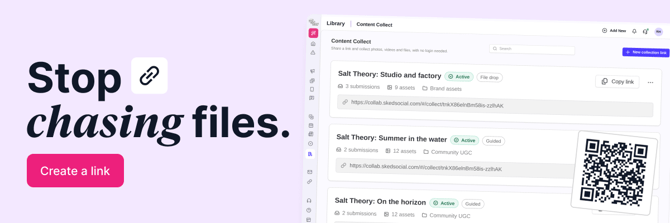
Content Collect swaps that for one link.
How it works
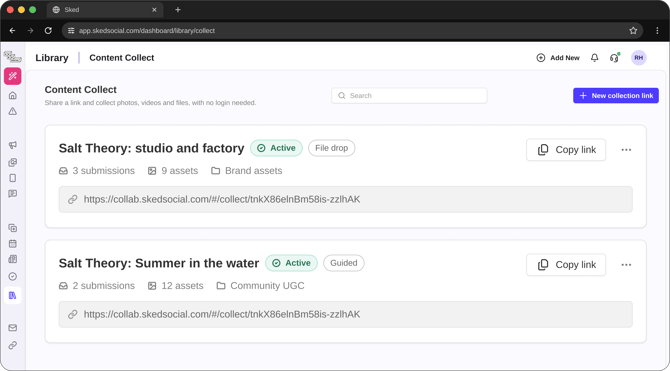
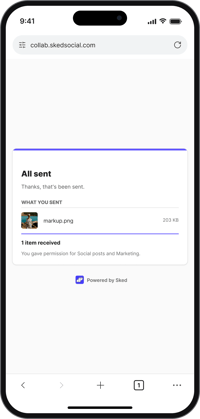
Create a collection link in the Library. Share it as a link or a QR code. Contributors send files from their phone or laptop. They don't need a login.
Everything lands in the Library collection you choose, tagged Content Collect, with the sender's details attached. Pick the mode that fits the job:
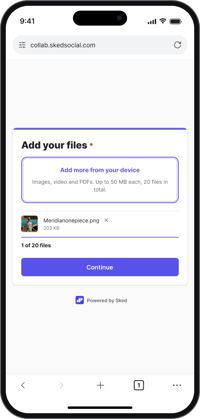
- File drop. One page, one drop zone. The fastest way for contributors to send.
- Guided. Walks contributors through up to 10 prompts, one at a time. Ask for video, images, PDFs, or text. Contributors can record video right in the browser. [NOTE: Linear says Guided needs the full tier. Confirm it is on every plan before publishing.]
Add your logo, brand color, instructions, and a thank-you message, so the page looks like yours and not a generic upload form.
 |
|
|
Collecting from every location
You run marketing for a brand with a dozen locations. The best local content sits on venue teams' phones. You can't give every location a Sked Social login, and you shouldn't have to.
Create one link per location and name each one, so you always know where files came from. Venue teams scan the QR code or open the link and send photos and video. Everything lands in one Library collection.
Need more context? Under Extra details, ask for a venue name, a city, or a product. Contributors answer when they send. You build next week's calendar from what arrived, not from what you chased.
Collecting at events
You're running a launch night, a festival stall, or a conference. Put a QR code on the poster, the table, or the screen. Guests scan it and send their photos and video from the night.
Set an expiry date so the link closes when the event does. When it's over, rotate the link. Set the grace period to 0 and the old QR code stops taking files straight away. Everything already collected stays in your Library. [NOTE: confirm submission caps and pause or close controls are live before mentioning them here.]
Collecting content you can actually use
A customer sends a great photo. Before you repost it, you want to know what they agreed to.
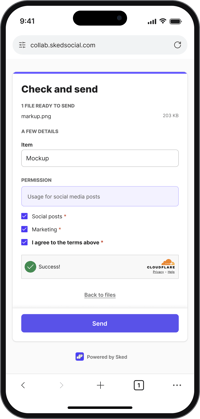
Turn on Ask contributors to agree before they send. Write your own terms under What they're agreeing to. Add each permitted use as a tickbox, and mark any use as required. Contributors can't send until they tick it. Set a rights expiry date if the permission has an end.
Under Who's sending, choose Required, Optional, or Don't ask for names and emails.
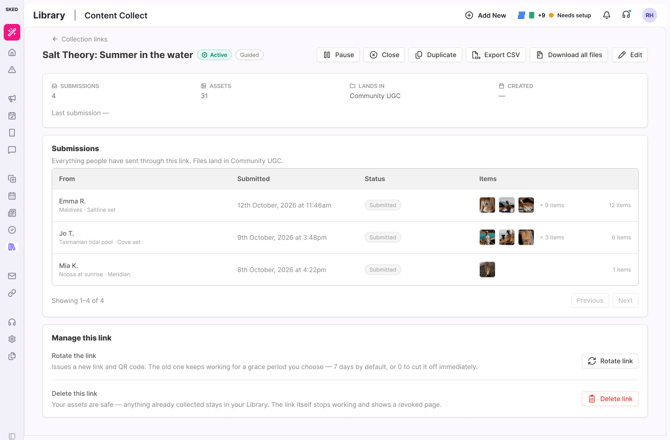
Open any asset and you'll see who sent it and what usage they agreed to.
Stay in control of the link
- Get an email when files arrive. Pick who receives it.
- See every submission in one list, and download the files.
- Rotate the link when you need a fresh one, or delete it. What's already collected stays in your Library.
Set one up
- Open the Library and select Content Collect.
- Select New collection link, name it, and choose File drop or Guided.
- Choose the Library collection that receives the files, and set an expiry.
- Decide what you ask contributors: name and email, your terms, and permitted uses.
- Select Create link. Then Copy link, or Download PNG for the QR code.
Why this matters
Collecting content has always been the slow part, and the part nobody owns. Now it starts with a link. Files arrive in your Library already tagged, with who sent them and what they agreed to.
Create your first link
Content Collect is on every plan. Open the Library, select Content Collect, and create your first collection link.