
Skills and agents in plain words
A skill is a folder with one instruction file. Claude reads it when your request matches, then follows it. An agent is Claude working through a skill on its own, for example every Monday morning, with your Sked Social account connected.
Use the ready-made skills to get going quickly. Write your own when you want Claude to follow your process, your checklist, or your way of reviewing content.
Install the Sked Social skills
You need a Sked Social account on a Professional, Accelerate, or Enterprise plan, with at least one brand group. The install adds the Sked Social connector for you, so you don't need to connect Claude first.
- Add the marketplace:
/plugin marketplace add DialogueConsulting/skedsocial-skills - Install the skills:
/plugin install sked-skills@sked-skills - When Claude asks to connect, select Sign in and finish the Sked Social sign-in.
- Start a new conversation and ask, "What does my calendar look like?"
Prefer the terminal? Run claude plugin marketplace add DialogueConsulting/skedsocial-skills, then claude plugin install sked-skills@sked-skills.
To update the skills later, run /plugin marketplace update sked-skills.
This works in Claude Code and Cowork. If you use claude.ai or Claude Desktop, add the connector by hand instead. Name it Sked Social exactly, because the skills look up the Sked Social tools by that name.
Use the ready-made skills
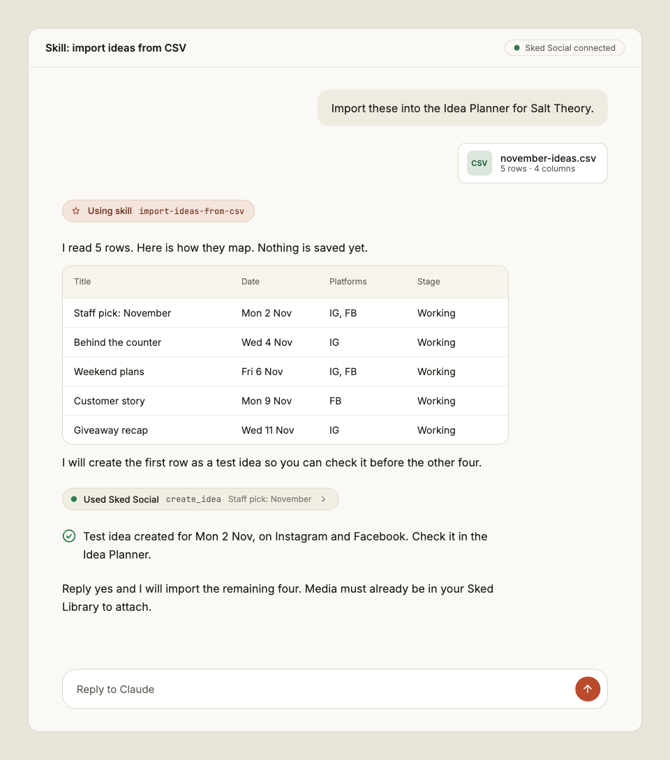
Once installed, just ask for the job. Claude picks the matching skill.
|
Skill |
What it does |
Try saying |
|---|---|---|
|
|
Runs a Brand Kit health check and guides you through descriptions, tone of voice, content pillars, and custom instructions |
"Set up my Brand Kit" |
|
|
Reviews the next two weeks, flags gaps, and shows how content is spread across pillars and platforms. It never changes anything |
"What does my calendar look like?" |
|
|
Gives a 30-day analytics summary with period-on-period, pillar, and platform breakdowns |
"How's [brand] doing this month?" |
|
|
Views, writes, generates, and imports ideas in the Sked Social Idea Planner |
"Generate 5 ideas for next week" |
|
|
Reviews content against your tone of voice, or rewrites it to match |
"Does this sound like us?" |
|
|
Creates an unscheduled draft from media already in your Library, with your caption saved exactly as written |
"Save this image as a draft for [brand] on Instagram" |
|
|
Creates and schedules a post, with captions, first comments, media, times, and approval statuses tailored per platform from your own source material, such as a spreadsheet or Notion page |
"Schedule this for Tuesday at 9am" |
|
|
Loads a content-planner CSV into the Idea Planner, matching columns and skipping duplicates |
"Import this CSV as ideas" |
|
|
Turns a content-planner CSV into drafts and scheduled posts, suggesting posting times from audience activity |
"Schedule my content calendar from this CSV" |
Skills ask which brand group to use if you have more than one. Anything that writes to your account goes through a preview first, and Claude asks you to confirm before it saves.
Two things to know:
- Media must be in your Sked Social Library.
create-draftandcreate-postcan't upload files or import from a link. If your media is somewhere else, such as Notion, Google Drive, or Dropbox, the skill walks you through uploading it first. - CSV imports go carefully. You see one preview of the whole file, then Claude writes a single test item and checks it before importing the rest. Rows whose media isn't in the Library are saved as ideas, so nothing is lost.
Some skills build on others. create-post uses create-draft, and import-posts-from-csv uses create-draft, create-post, and import-ideas-from-csv. Install the whole package rather than copying a single skill.
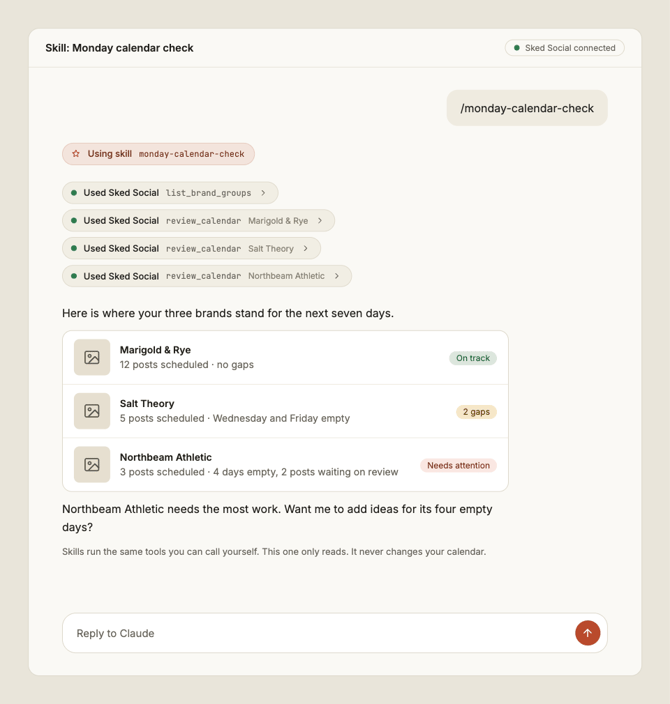
Create your own skill
A skill is a folder containing a file named SKILL.md. The top of the file says what the skill is called and when Claude should use it. The rest is plain instructions.
- Make a folder named after the job, for example
monday-calendar-check. - Add a
SKILL.mdfile inside it. - Write a short
nameand adescriptionthat says when to use it. Claude uses the description to decide. - Write the steps in plain language. Name the Sked Social tools you want used, such as Sked_Social:
review_calendar. See the tools list. - Save it where your Claude looks for skills.
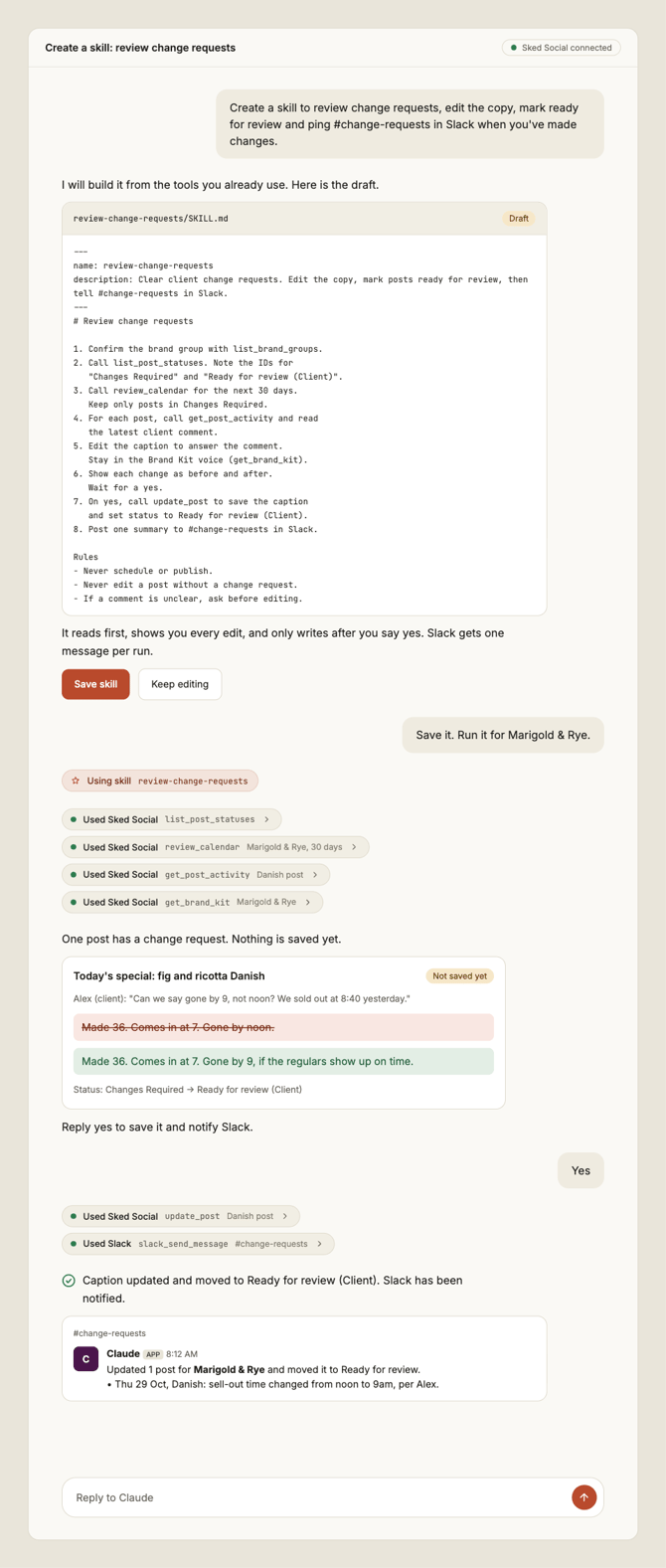
Where to save it
- Claude Code: put the folder in
~/.claude/skills/to use it everywhere, or.claude/skills/inside a project. - claude.ai and Claude Desktop: zip the folder and add it under Settings → Capabilities → Skills.
Worked example: a Monday calendar check
--- name: monday-calendar-check description: Review next week's Sked Social calendar and tell me what needs attention. Use when I ask what's coming up, whether I'm ready for the week, or on Monday mornings. --- # Monday calendar check 1. Call Sked_Social:list_brand_groups. If there is more than one, ask which brand to check. 2. Call Sked_Social:review_calendar for the next seven days. 3. Call Sked_Social:get_brand_kit and read the words to avoid. 4. Tell me, in this order: - Days with nothing scheduled, by platform. - Posts still waiting on approval. - Anything scheduled that uses a word on our avoid list. 5. Offer to draft ideas for each gap. Do not create or change anything until I say yes.That's a full skill. Start with something this small, run it a few times, and tighten the wording each time it misses.
Claude has built in tools to help you create, manage and share skills with your team.
Tips for good skills
- Say what should never happen. "Do not change anything until I say yes" keeps an agent safe to run.
- Ask for a fixed shape of answer, so results look the same every time.
- Read the Brand Kit first when tone matters. Your tone of voice and words to avoid are the rulebook.
Run it on a schedule or share it
Run it on a schedule. Once a skill works when you ask for it, set Claude to run it for you. In Cowork, create a scheduled task that uses the skill, for example every Monday at 8am. Claude works through the skill with your Sked Social account and leaves you the result.
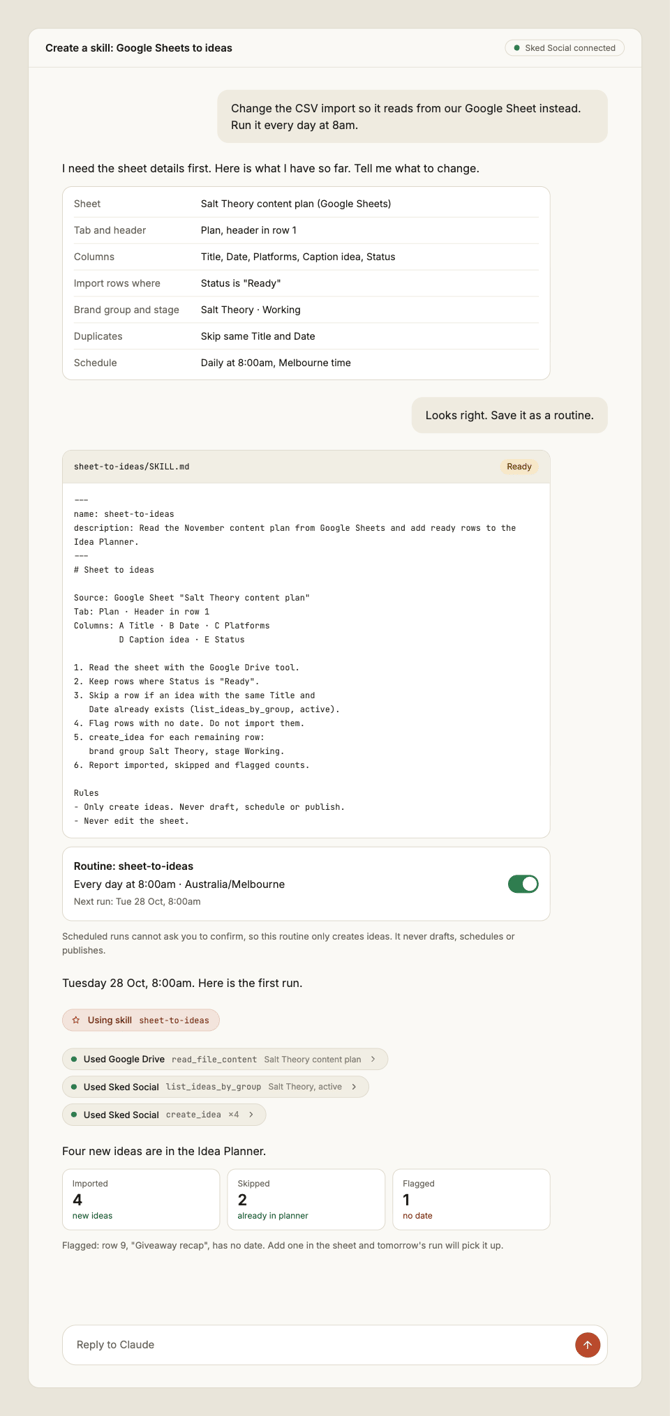
Share it with your team. Keep the skill folder in a Git repository or use the in built skill options to share with your team in Claude. Using the same, consistent tooling where knowledge is shared across users and systems produces better results that relying on chat only context.
Everyone connects with their own Sked Social account, so each person's permissions and brand group access stay their own.
A scheduled agent runs without you watching. Every action it takes is logged against "[Your name]'s Agent", so you always have a record of what it did.
Good habits and limits
- Your agent has your permissions. It sees and does only what your own Sked Social account can.
- Inbox replies are drafts. An agent can write and save a draft. A person always sends it.
- Start read-only. Build a skill that only reads first. Add steps that create or change content once you trust it.
- Keep secrets out. Never put passwords or keys in a skill. Sked Social signs in with your account, so you don't need any.