
This guide walks you through connecting your Google account and mapping a OneDrive folder to a Sked collection.
What you'll need
- A Sked account on the Accelerate plan or above
- A Dropbox account with access to the folders you want to sync
Sked supports syncing both OneDrive business and personal accounts
Step 1: Connect your OneDrive account
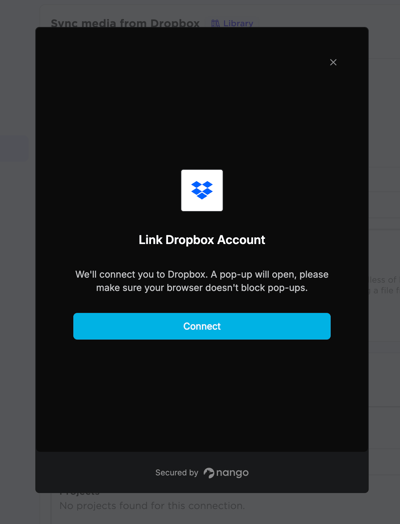
- Select the profile icon in the top-right corner of Sked, then choose Settings.
- In the left sidebar, select Integrations. You'll see all available integrations and any you've already connected.
- Find OneDrive in the list and select Connect.
- A "Link OneDrive Account" modal appears. Select Connect inside it.
- A new browser window opens outside Sked for your OneDrive account selector and. Choose the account you want to link, and authorise Sked to connect.
- OneDrive will ask you to confirm what Sked is allowed to access. Review the permissions and confirm.
- Once authorized, the window closes and the Sked modal updates to show a success message. Select Finish.
You're back in Sked with Dropbox connected. Next up: choosing which folder to sync.
Step 2: Map a Drive folder to a Sked collection
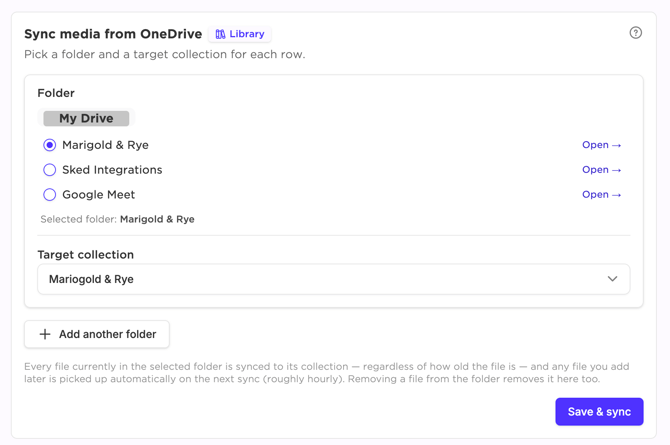
After hitting Finish, Sked takes you straight to the OneDrive configuration page. This is where you pick what syncs and where it lands in your Library.
- Choose your source folder. Use the folder picker at the top of the page to select which OneDrive folder to sync from. You can navigate into subfolders, not just the top level of your OneDrive storage.
- Select a target collection. In the collection dropdown, choose which Sked Library collection the assets should sync into. No collection yet? Create one directly from the dropdown.
- Hit Save & Sync. Sked starts pulling your assets across immediately. You'll see a "Saved: sync started" confirmation.
- Repeat. Link any additional sources to collections as needed
No field mapping, no import steps. Sked handles the rest.
Tip: Name your collection to match the OneDrive folder it's syncing from. It's a lot easier to find assets when you're mid-scheduling.
Step 3: Find your files in the Library
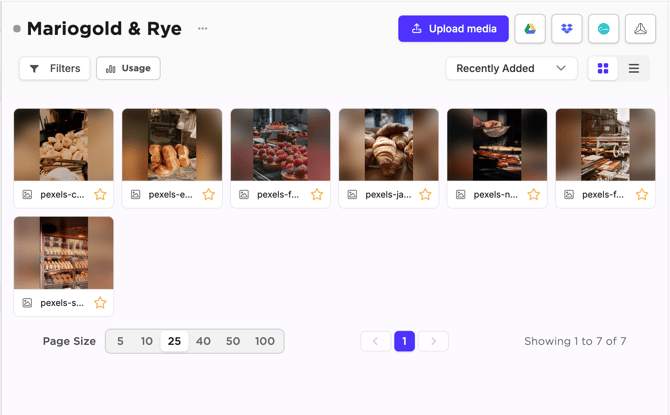
- Select Library in the left navigation.
- Open the collection you mapped the folder to.
- Your OneDrive assets will already be there, synced at the same resolution they're saved in OneDrive.
From here, attach them to posts, add them to drafts, or use them anywhere in Sked just like any other asset in your Library.
How sync works
First sync starts as soon as you hit Save & Sync. Assets come across immediately. Additional sync runs are processed every 60 minutes, and the integrations page includes logs of sync runs.
Ongoing sync is automatic. When you add, update, or replace files in the mapped OneDrive folder, Sked picks up those changes without you doing anything.
Resolution is preserved. Files sync at the same quality they're stored in OneDrive. Sked doesn't compress or resize them.
One folder per mapping. Each mapping connects one OneDrive folder to one Sked collection. To sync multiple folders, set up multiple mappings from the same configuration page.
Common questions
Can I sync a subfolder rather than a top-level folder?
Yes. The folder picker lets you navigate all the way into nested subfolders in your OneDrive.
What file types sync?
Images and media files. Documents and non-media file types don't sync into the Library.
What if I connect the wrong Google account?
Go to Settings > Integrations, disconnect OneDrive, and reconnect with the correct account.
Can multiple team members see the synced assets?
Yes, assets that sync into a Library collection are available to everyone on your workspace who has access to that collection.