
How Advanced Approval Workflows work in Sked Social
Your organization already has a way of signing things off. Advanced Approval Workflows let Sked Social follow it.
Build a sequence of review steps. Choose who approves at each one. Sked Social moves the post along as each step clears.
Advanced Approval Workflows are available on the Custom plan. Book a call to activate
What Advanced Approval Workflows do
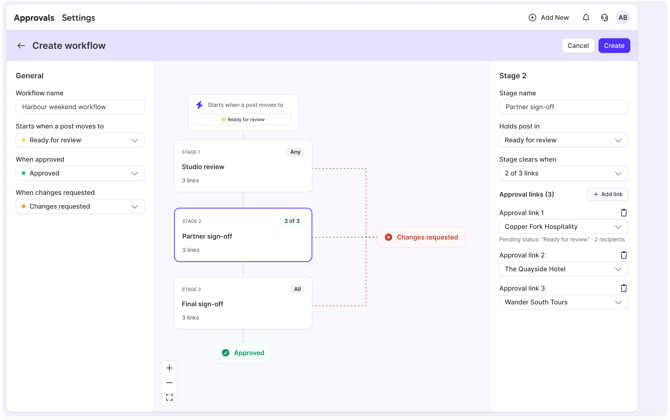
A workflow is a series of steps. A post enters at a start status, passes through each step in order, and lands in your approved status once the last step clears.
Each step has its own approval links and its own rule. Reviewers use the same no-login approval links they already know, so they never need a Sked Social seat.
To get started quickly, pick a preset template with predefined steps for a common workflow, such as an agency and client review, or a location and head office review. You can adjust it from there.
A workflow might look like this:
- Team review. Any one team lead can approve.
- Legal and compliance. Both must approve.
- Client sign-off. The client approves.
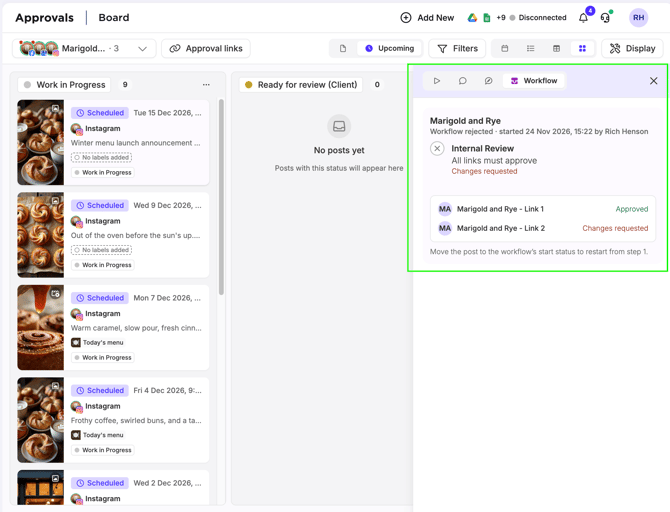
If a reviewer chooses Request changes at any step, the review ends. The post moves to your changes-requested status so your team can revise it. Move it back to the start status when it's ready and a fresh review begins.
Who it's for
Advanced Approval Workflows suit teams where one sign-off is not enough.
- Multi-department teams where marketing, legal, and compliance all weigh in.
- Multi-location brands where a location reviews first and head office approves last.
- Agencies that need internal review before the client sees a post.
Without Advanced Approval Workflows, the approval requirement and post statuses apply to your whole workspace. With them, each workflow applies only to the accounts or groups you choose. One region can follow a different path from another.
Choose where to start
Workspace admins with access to Workflows can create and manage them. Go to Approvals, then Links & themes, then Workflows, and select Create workflow.
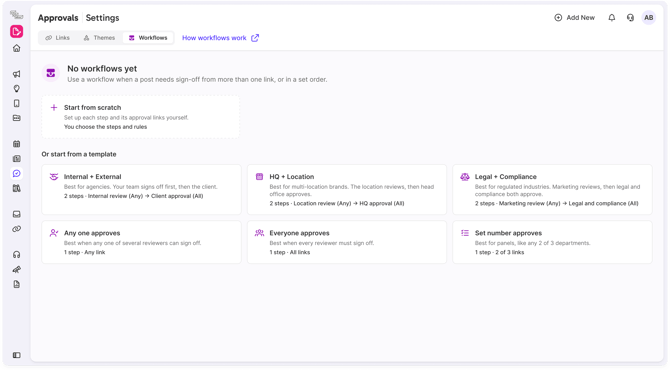
You don't have to build from a blank canvas. Sked Social includes preset templates for common approval workflows, each with predefined steps and rules already in place. Choose the one closest to how your team signs off, then select Create. You add your own accounts, statuses, and approval links afterward, and you can change the steps or rules to fit.
| Template | Best for | Steps it sets up |
|---|---|---|
| Internal + External | Agencies. Your team signs off first, then the client. | 2 steps: Internal review (Any link), then Client approval (All links) |
| HQ + Location | Multi-location brands. The location reviews, then head office approves. | 2 steps: Location review (Any link), then HQ approval (All links) |
| Legal + Compliance | Regulated industries. Marketing reviews, then legal and compliance both approve. | 2 steps: Marketing review (Any link), then Legal and compliance (All links) |
| Any one approves | Any one of several reviewers can sign off. | 1 step: Any link |
| Everyone approves | Every reviewer must sign off. | 1 step: All links |
| Set number approves | Panels, like any 2 of 3 departments. | 1 step: 2 of 3 links |
Prefer to set up each step and its approval links yourself? Choose Start from scratch and you decide the steps and rules.
Set up accounts, statuses, and dates
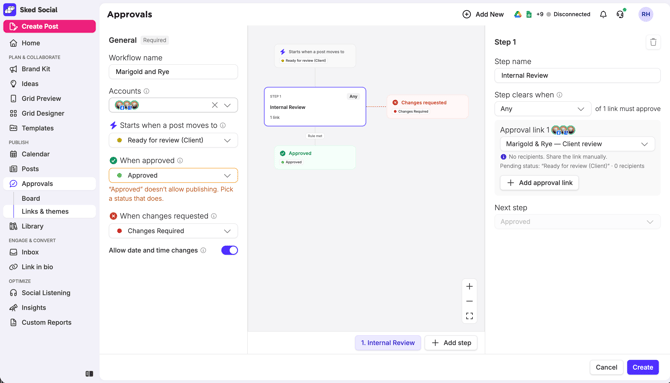
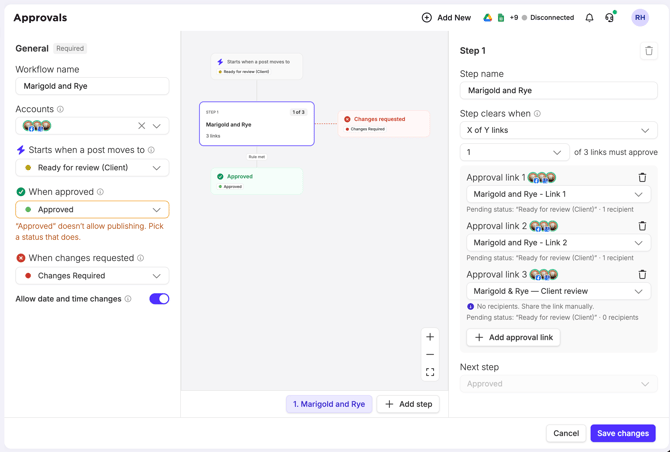
The builder has three areas. General applies to the whole workflow. The canvas shows the sequence of steps. Step properties controls the step you've selected.
In General, you:
- Name the workflow and choose the social accounts or groups it covers. Every approval link in the workflow must cover those accounts.
- Set the statuses. Starts when a post moves to triggers the first step. When approved needs a status that allows publishing. When changes requested is where a post lands after a reviewer asks for changes.
- Set the date policy. Turn on Allow date and time changes if posts can be rescheduled during review.
While a review is running, the post's content and approval status stay locked. Date and time can change only if the workflow allows it and the person has permission.
Two active workflows can't cover the same account from the same start status. Sked Social asks you to resolve any overlap.
Choose a rule for each step
Under Step clears when, choose how many of the step's approval links must approve. Each link counts once.
| Rule | The step clears when | Example |
|---|---|---|
| Any link | One configured link approves. | Any one location manager can sign off. |
| All links | Every configured link approves. | Both legal and compliance must sign off. |
| X of Y links | The number you choose approve. | Any two of three department links can sign off. |
For X of Y links, set at least two link slots, then choose the number in Links required. Use Approval link 1 to pick a link. Select Add approval link to add another.
Because each link counts once, "two approvals" means two different links. One link can't approve twice to clear a step.
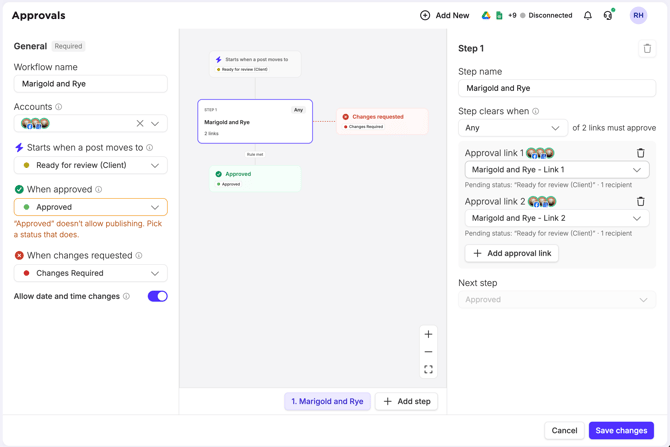
Check each link's details in the editor. It shows the link's pending status and how many people get email notifications. If nobody is set to be notified, share the link manually.
Turn it on
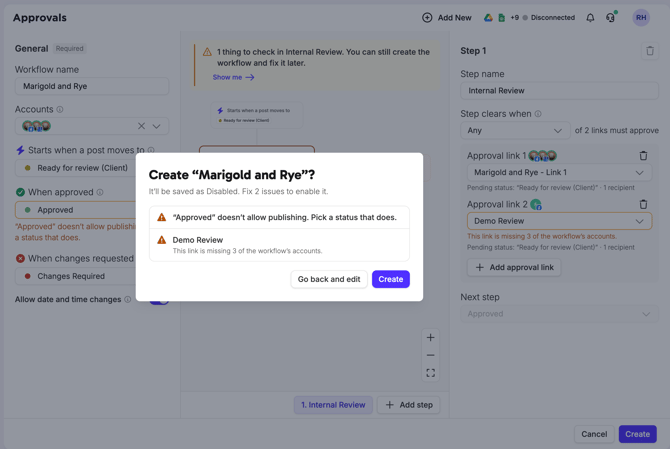
New workflows save as Disabled. That gives you time to check the setup before any post enters it.
Sked Social runs checks when you create a workflow. Blockers must be fixed before you can enable it. Advisories, such as no notification recipients on a link, can be handled separately. Select Show me to jump to the control that needs attention.
When you're ready, choose Enable on the workflow's row. Its status changes to Active, and covered posts can start a review by moving to the workflow's start status.
Common fixes:
- Choose an available account.
- Make each link cover the selected accounts.
- Replace any missing or duplicate links.
- Use separate statuses for each step where required.
- Pick a final status that allows publishing.
Follow a review
For a covered post, choose the workflow's start status from the approval status control. The post is now in review.
Share the approval link, or let configured email notifications do it. The reviewer opens the post and chooses Approve or Request changes. If the step needs more approvals, it stays open for the remaining links.
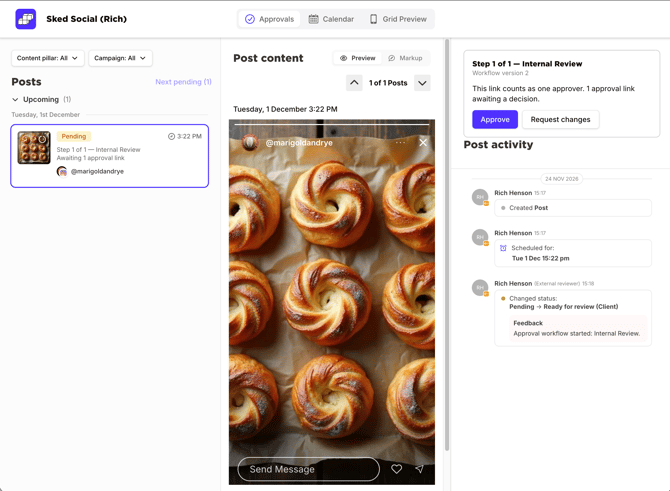
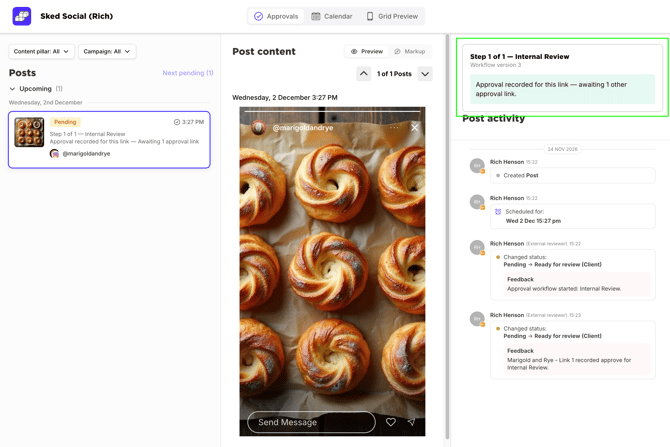
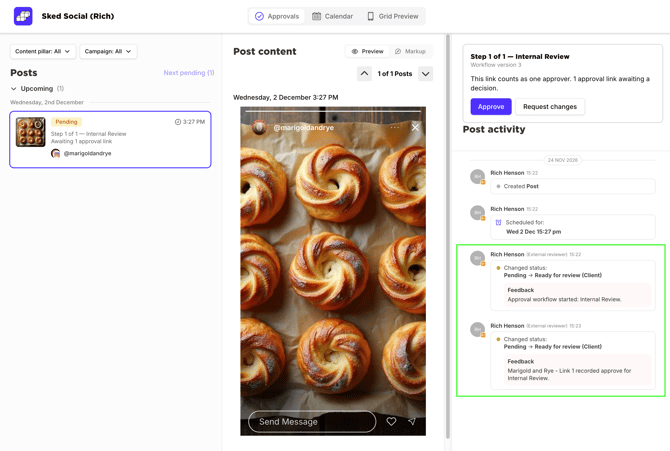
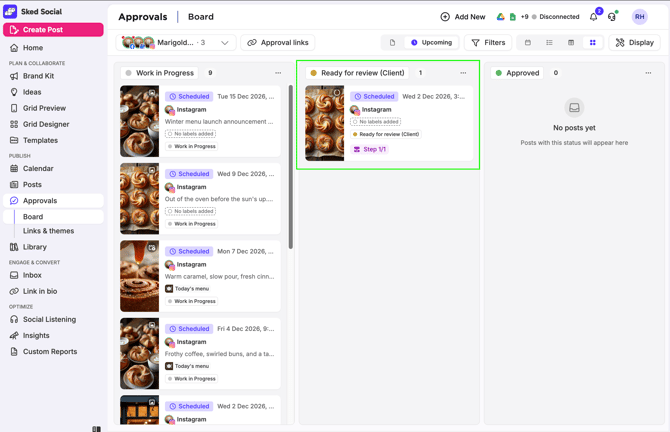
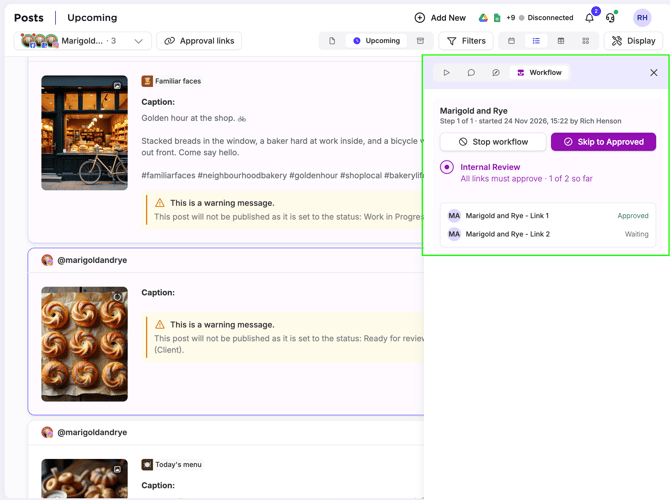
You can follow progress in three places:
- Badges and columns. On the Approvals Board, in List view, and in Table view, posts show the current step and the total number of steps.
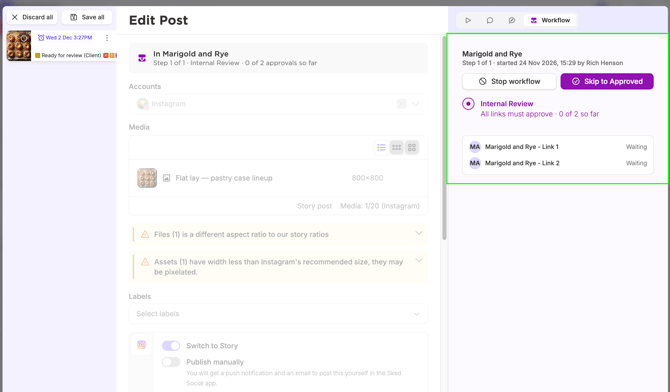
- The Workflow tab. Open a post and select Workflow to see the current step, how many approvals remain, and which links are still waiting.
- Activity. The post's Activity tab logs each start, link approval, cleared step, and request for changes.
When a post needs changes
A Request changes decision ends that run. The post moves to the status you set under When changes requested, and the Activity tab records it.
Update the post, then move it back to the start status. A fresh review begins from step one.
Posts that are in review
While a review is running, the composer shows a notice naming the workflow and the current step. Content and approval status can't be edited.
If the workflow allows date and time changes, rescheduling follows your normal scheduling permissions. If it doesn't, the post can't be moved. The calendar shows the reason when a move is blocked, and a draft in an active workflow can't be scheduled until it's approved.
Manage workflows and live reviews
Use the Workflows list to change what happens to future posts. Use a post's Workflow tab to manage its current review.
In the Workflows list
- Edit. Select Save changes to save a new version. Reviews already underway keep the steps they started with.
- Disable. New posts stop entering the workflow. Posts already in review continue.
- Duplicate. Start from a copy.
- Archive. Retire a workflow. Restore brings it back as Disabled.
If another editor changes a workflow while you're working, reload the current version before you save so you don't overwrite their update.
On a post in review
Authorized admins have two actions on a live review. Each asks for a reason, and the reason appears in Activity for other administrators.
- Stop workflow. Ends the current review. The post keeps its current status.
- Skip to Approved. Sends the post to the approved status before the remaining steps clear.
Good to know
- Approved is not published. A post that clears its last step moves to your approved status. Publishing follows your normal scheduling.
- The link is the reviewer. Each approval link counts as one approval. Sked Social records which link approved, and when.
- Email verification is separate. You can ask reviewers to confirm their email with a one-time code on an individual approval link. That setting is not part of Advanced Approval Workflows, though it is on the Custom plan too.
- Collaborators without access. If someone on your workspace doesn't have access to Workflows, the Workflow tab points them to their workspace administrator.
How to get Advanced Approval Workflows
Advanced Approval Workflows are available on the Custom plan, and Sked Social turns them on for your workspace. Your existing approval links keep working in the meantime.
Book a call to activate. We'll get you set up and help you build your first workflow.