
You'll need your GA4 Measurement ID. This is a string that starts with G- followed by a series of letters and numbers (for example, G-A1B2C3D4E5).
To find it in Google Analytics: go to Admin > Data Streams, select your web data stream, and copy the Measurement ID shown at the top of the panel.
How to add your GA4 property
1. In Sked Social, select Link in bio from the left navigation.
2. At the top of the page, click the Integrate tab.
3. In the Google Analytics 4 section, paste your Measurement ID into the input field.
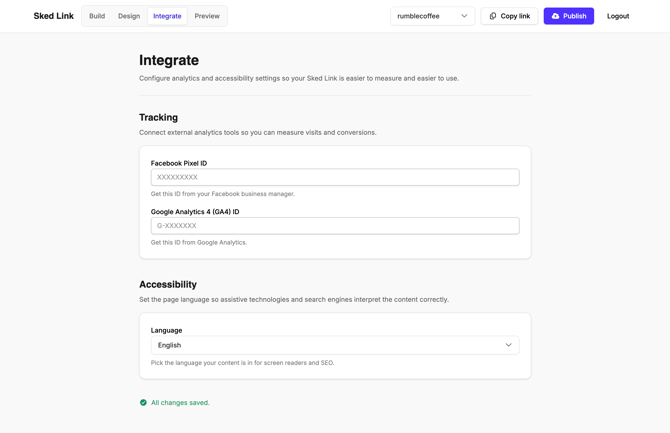
4. Sked Social saves your changes automatically. You'll see an All changes saved confirmation at the bottom of the screen.
That's it. GA4 will now track traffic and clicks from your Sked Link page.
What gets tracked
Once your Measurement ID is connected, Google Analytics will record:
- Traffic – visits to your Sked Link page, including source, medium, and campaign data
- Clicks – individual link clicks on your page
Data will begin appearing in your GA4 reports within 24 to 48 hours of setup.
Need help?
If you're not seeing data in GA4 after 48 hours, double-check that the Measurement ID is entered correctly and that your GA4 data stream is set to Web. You can also reach our support team 24/7 from the help icon inside Sked Social.