
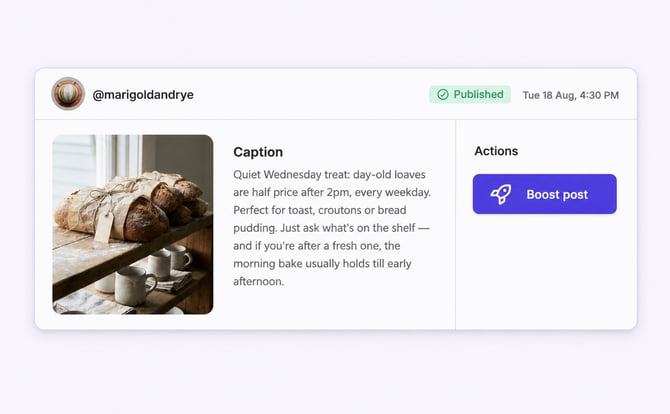
Sked Social lets you boost already-published Facebook and Instagram posts directly from your dashbaord, without opening Meta Ads Manager.
A four-step guided flow walks through Setup (eligibility checking and ad account selection), Targeting (audience and objective configuration), Budget (daily or lifetime spend and duration), and Review before submission.
Boost settings are saved against the post record for future reference.
Before you start
Two setup steps are required before the Boost button is available. Both are completed by your Account Admin.
Step 1 -- Link a Meta Ads account to your group
Your Account Admin must go to Settings > Groups > [your group name] > Meta Ads account and link the Meta Ads account to use for boosting. If this step is not complete, the Boost button appears on post cards but is disabled.
Step 2 -- Grant the "Can Boost Posts" permission
Your Account Admin must go to Settings > Manage Users, find your name, and enable the "Can Boost Posts" permission. Without this permission, the Boost button appear but not be functional.
One additional requirement: your connected Meta account must have ads_management permission. If it does not, you will be prompted to reconnect your Meta account when you start the boost flow. This takes about one minute and does not affect your other Sked Social publishing permissions.
How to boost a post
- Go to the Archive view in Sked Social.
- Find the published Facebook or Instagram post you want to boost. Eligible published posts display a rocket icon (🚀) on the post card. Posts that failed to publish, or were published by mobile notification, will not show this icon: see How to import a post for boosting below.
- Select the rocket icon to open the boost flow.
- Setup: Sked Social checks whether the post is eligible for boosting and confirms the linked Meta Ads account for your group.
- Targeting: Choose your campaign objective (Engagement, Traffic, or Awareness), then configure your audience: Advantage audience toggle, age range, gender (All, Male, or Female), locations (at least one location is required), and interests.
- Budget: Set your budget type (daily or lifetime), the budget amount, and how long the boost should run.
- Review: Review all settings: post, ad account, objective, targeting, and budget. Click Boost Now to submit.
Your settings are saved against the post record. You can view them by returning to the post card in the Archive.
How to import a post for boosting
Posts published by mobile notification are not automatically available in the Archive for boosting. To make them eligible, import them using Grid Preview.
- Go to Grid Preview in Sked Social.
- Select the account the post belongs to.
- In the left panel, select Import Posts.
- Choose the posts you want to import and confirm.
Once imported, the posts appear in the Archive and display the rocket icon (🚀) on eligible post cards.
Troubleshooting
The Boost button doesn't function from the archive.
Your Account Admin has not granted you the "Can Boost Posts" permission. Ask your Admin to go to Settings > Team and enable it for your account.
The Boost button appears but is disabled.
Your group does not have a Meta Ads account linked. Ask your Account Admin to go to Settings > Groups > [your group name] > Meta Ads account and link the account.
I see a "Reconnect your Meta account" prompt.
Your Meta account is missing the ads_management permission. Click Reconnect and complete the Meta authorization flow. This takes about one minute and does not affect your publishing connection.
The post I want to boost is not eligible.
Some post types cannot be boosted due to Meta's eligibility rules, for example, posts with certain media types or from pages that do not meet Meta's requirements. Sked Social surfaces the reason inline.
Posts published by mobile notification will not show the rocket icon and cannot be boosted directly — see How to import a post for boosting above.
I cannot see the Meta Ads account option in Group Settings.
Only Account Admins can see and edit this setting. If you are an Admin and the option does not appear, confirm that your Meta account has the necessary permissions in Meta Business Manager.