
Sked's GA4 integration connects a Google Analytics 4 property to a brand group and surfaces website traffic data inside Sked Insights. Once connected, the Website Traffic section appears automatically in Insights › Brand Summary, showing sessions, channel mix, top landing pages, platform breakdown, and a UTM Health score.
Before you start
You'll need:
- A Google account connected to Sked with access to the GA4 properties you want to use. You can enable that here!
- Manage Social Accounts or Admin permissions in your Sked workspace to manage which properties are visible.
Step 1: Assign a GA4 property to a brand group
- Click your profile icon at the top right of Sked
- Select Manage Social Accounts & Groups
- Go to the Groups tab
- Find the brand group you want to update and click Edit
- Use the GA4 property dropdown to select the property for this group
- Click Save
Once a property is assigned, the Website Traffic section appears automatically in Insights for that brand group.
Each brand group connects to one GA4 property. If you manage multiple brands, repeat this step for each group.
Step 2: View your Website Traffic data in Insights
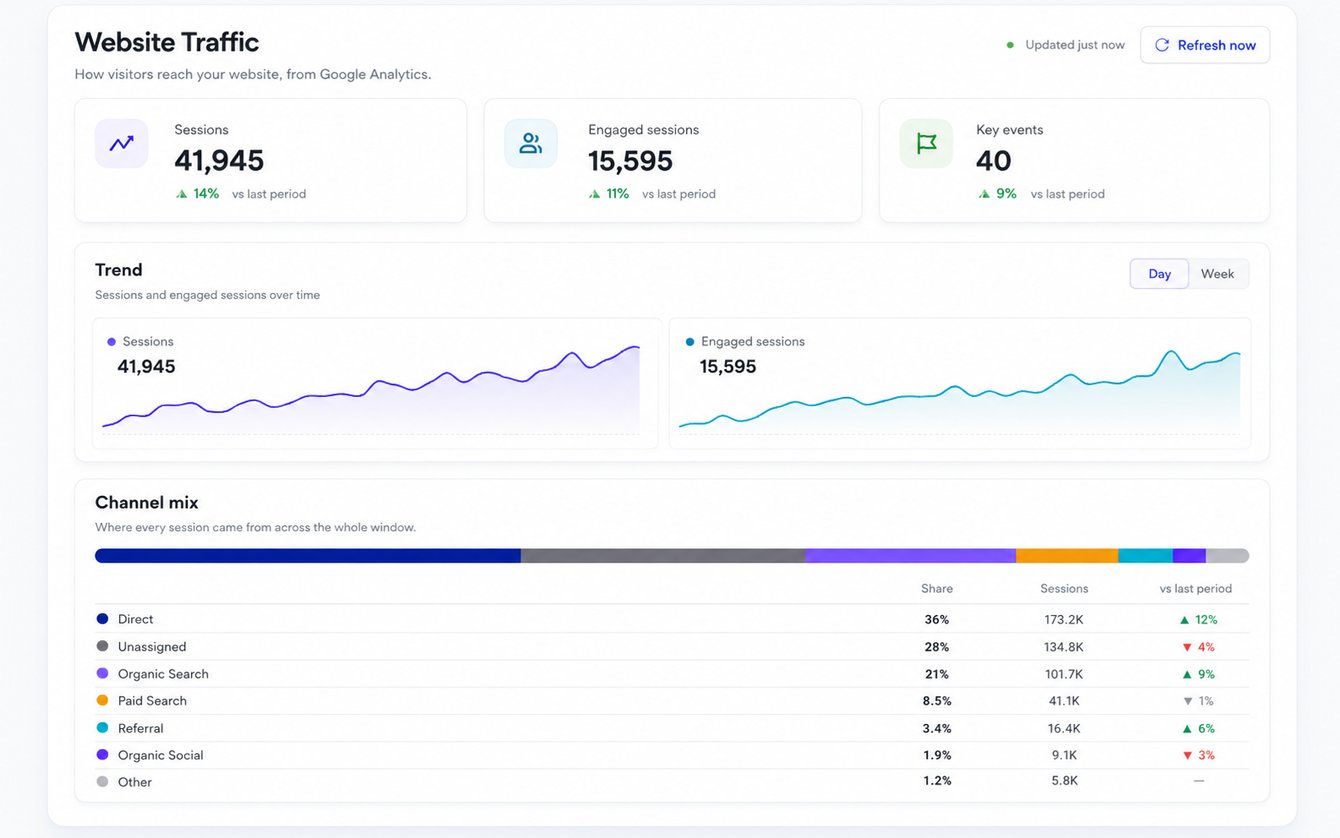
Once a GA4 property is assigned to a brand group, the Website Traffic section appears automatically in Insights › Brand Summary for that group.
The section includes:
- Where social traffic is coming from – a table showing which platforms and posts are sending sessions to your website
- Traffic trend – sessions over time, with channel overlay
- Channel mix – breakdown of organic social, direct, search, and other sources
- Top landing pages – which URLs on your site are receiving traffic
- Platform breakdown – sessions by social platform
- Mobile vs desktop – device split for social-referred traffic
- UTM Health score – your tag quality score out of 100, with flagged posts that have broken or missing UTMs
- AI insights – automated observations about traffic patterns, surfaced when there's something worth acting on
Understanding your UTM Health score
The UTM Health score (shown as "Tag Health" inside Sked) rates your UTM tagging quality out of 100. It checks posts published via Sked for correct, complete UTM parameters and flags any that are broken, missing, or inconsistently formatted.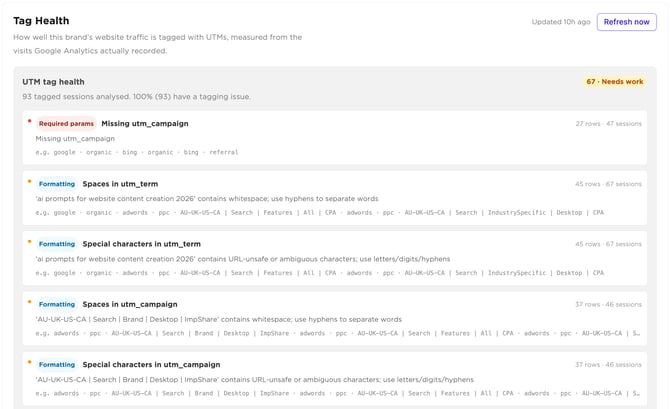
A lower score means some posts are going out without full attribution coverage. When that happens, GA4 may assign that traffic to Direct or Other instead of Social.
To improve your score:
- Enable auto-UTM tagging in Manage Social Accounts > Select Account > Auto UTM. Or ensure your UTMs are consistent and encapsulated inside your preferred short link service.
- Review flagged posts in the UTM Health section and republish or update where needed
Troubleshooting
Website Traffic section isn't appearing in Insights
Two things need to be in place: (1) your GA4 property must be checked and visible in Settings › Google Analytics, and (2) that property must be assigned to the brand group in Manage Social Accounts & Groups › Groups › Edit. Both are required. If you're not a workspace admin, you may not be able to complete step 1 yourself. Ask your admin to check.
I connected GA4 but see no data
GA4 data can take a few minutes to populate after the first connection. If nothing shows after an hour, check that the correct GA4 property is assigned to the right brand group.
The GA4 property I need isn't showing in the brand group dropdown
A workspace admin may have unchecked that property in Settings › Google Analytics. Ask your admin to review the property visibility settings and check the one you need.
I'm getting an OAuth error
Make sure the Google account connected to Sked has at minimum the Viewer role on the GA4 property in Google Analytics. Viewer access is enough. If you're seeing an error, the account may only have access at the account level rather than the specific property.
Can I connect multiple GA4 properties to one brand group?
No. Each brand group connects to one GA4 property. If you manage multiple brands with separate properties, assign each to its own brand group in Sked.
Can I connect multiple groups to a single GA4 property?
Yes. Multiple brand groups can use a single GA4 property.
Does Sked modify my GA4 data or settings?
No. Sked connects via read-only OAuth. Your GA4 data and configuration are never changed.