
Duplicated posts always open as a new unsaved draft. The scheduled date and time are cleared, and the post is assigned your workspace's default approval status — so it goes through the right review process before publishing.
Prerequisites
No setup required. The Duplicate action is available to all users on all plans.
How to duplicate a post
From Upcoming, Drafts or Archive
- Go to Upcoming/Upcoming/Archive in the left navigation. All sections have identical post duplication funtionality.
- Find the post you want to duplicate.
- Select Duplicate.
- Create Post opens with the duplicated content pre-filled as a new unsaved draft.
- Make any changes, set a new schedule if needed, and save or publish.
From the Calendar
- Go to Calendar in the left navigation.
- Click a post to open the preview panel.
- Click the Duplicate Icon in the preview panel.
- Create Post opens with the duplicated content as a new unsaved draft.
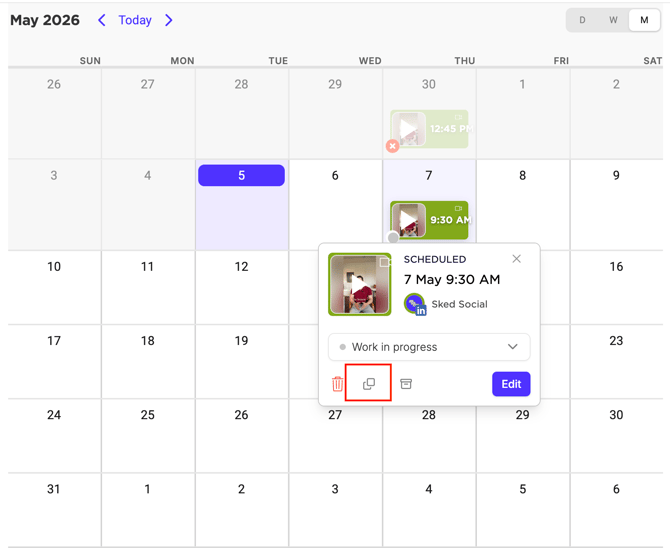
Note: The Duplicate action is available in the Calendar preview panel only. If you've opened the full post edit view, use the Create Post context menu instead (see below).
From Create Post (context menu)
- Open a post, saved draft, or scheduled post in Create Post.
- In the post tab, click the context menu (⋯).
- Select Duplicate.
- A new unsaved tab opens with the duplicated content.
- The original post or draft is unchanged.
This works for new unsaved posts, saved drafts, and scheduled posts.
How to bulk duplicate posts
You can duplicate up to 20 posts at once from Upcoming, Drafts, or Archive.
- In Upcoming, Drafts, or Archive, enable multi-select (the same way you would for a bulk edit).
- Select the posts you want to duplicate (up to 20).
- In the bulk action bar, click Duplicate.
- Bulk Create opens with all selected posts as separate new unsaved drafts.
- Review and update each post, then save or schedule as needed.
Limit: Selecting more than 20 posts will disable the Duplicate action in the bulk bar. Deselect posts until you're within the 20-post limit.
What happens when you duplicate a post
| Behaviour | |
|---|---|
| Content | All post content is copied to the new draft (text, media, links, platform selections) |
| Scheduled date/time | Always cleared. No date or time is carried across |
| Approval status | Set to your workspace's default approval status |
| Source post | Unchanged. Duplicating never modifies the original |
| Post type | All post types are supported (images, carousels, videos, Stories, Reels, link posts, etc.) |
Troubleshooting
I can't see the Duplicate option on a post.
Check that you're looking at the overflow menu (⋯) on the post card, not the full edit view. In Calendar, the Duplicate option is in the preview panel only — not the full post detail view.
The duplicated post opened with the wrong approval status.
The duplicate always uses your workspace's default approval status, not the source post's status. If you expected a different status, check your workspace approval workflow settings.
The duplicated post still has a scheduled date.
Duplicated posts always have their scheduled date cleared. If you're seeing a date, you may have reopened the original post rather than the duplicate. Check that you're editing a new unsaved draft (the tab should show as unsaved).
I selected more than 20 posts and Duplicate is greyed out.
Bulk duplication supports up to 20 posts at a time. Deselect some posts and try again.
My post content is missing after duplication.
All content from the source post is copied across. If something appears missing, check that the content was saved on the original post before duplicating.