
Share to Sked lets you save any link — from Instagram, Safari, TikTok, X, or any other app on your iPhone or Android phone — directly into your Sked Ideas Scratchpad with one tap. The link is automatically enriched with a title, preview image, and description, so your idea arrives ready to develop without any extra typing.
This feature is available on all Sked plans and requires the Sked Mobile app version 2026.3.1 or later.
Prerequisites
Before using Share to Sked:
- Sked Mobile app installed on your iPhone
- App updated to version 2026.3.1 or later (check App Store under Updates)
- Logged in to your Sked account on the mobile app
- At least one Account Group set up in Sked
How to share a link to your Ideas Scratchpad
Step 1 — Find something worth saving
Open any iPhone app — Instagram, Safari, TikTok, X, a news reader, or anywhere else. Find the content you want to capture.
.png?width=670&height=503&name=image%20(128).png)
Step 2 — Tap the share icon
Tap the share icon to open your phone's share sheet. On iPhone, this is the box with an upward arrow (↑). On Android, look for the share icon in the app you're using.
Step 3 — Find and tap Sked
In the share sheet, look for the Sked Social app icon. On iPhone, if you don't see it immediately, scroll across the app row or tap More at the end of the list. On Android, look in the share sheet app list. Tap Sked.
.png?width=670&height=503&name=image%20(131).png)
Step 4 — Select your Account Group
A "Save to Sked" sheet will appear with the URL already populated. Tap the Group dropdown and select the Account Group for this idea.
You can also add labels and assign people to the Idea.
.png?width=670&height=503&name=image%20(130).png)
Step 5 — Tap Save
Tap Save in the top right corner. A "Saving idea…" loading state confirms your idea is being saved.
Step 6 — Find your idea in Sked
Open the Sked app and navigate to Content → Ideas → Scratchpad. Your saved idea will appear as the most recent entry, with the title, preview image, description, and source link already populated.
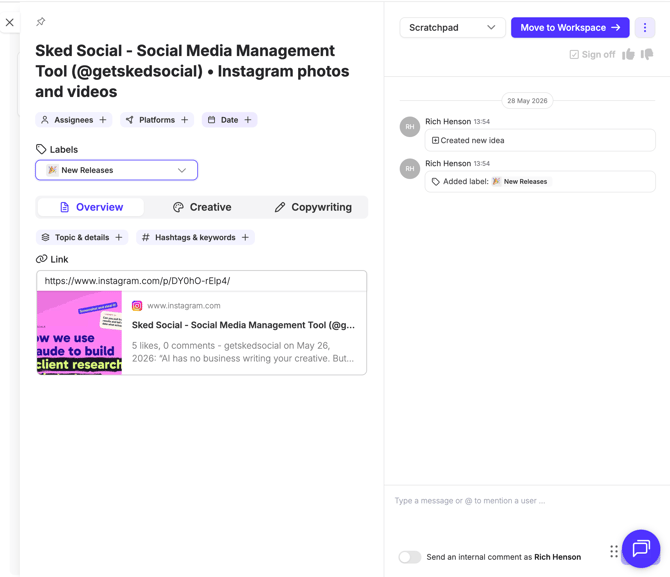
What gets saved automatically
| Field | Description |
|---|---|
| Title | The title of the page or post |
| Preview image | The featured image or thumbnail |
| Description | A short description of the content |
| Source URL | The original link, preserved and clickable |
| Label | The content pillar or campaigns assigned |
| Assignees | User assigned to the Idea |
Troubleshooting
I can't see Sked in my share sheet
Make sure the Sked app is installed and updated to version 2026.3.1 or later. If Sked is installed but not appearing, tap More at the end of the app row in the share sheet, then find and enable Sked in the app list.
The title or image didn't appear on my saved idea
Not all links return metadata — private content, login-gated pages, or some app-generated URLs may not enrich automatically. Your idea is still saved with the URL intact. You can add a title and description manually in your Ideas Scratchpad.
I saved the idea but can't find it
Check that you selected the correct Account Group when saving. Navigate to Content → Ideas → Scratchpad and check the Account Group filter matches where you saved.
The "Save to Sked" sheet didn't appear
Make sure you're running Sked Mobile 2026.3.1 or later (check App Store under Updates). If the app is up to date and the issue persists, contact Sked Support.
I'm on Android — does this work for me?
Yes, Share to Sked is available on Android as well as iPhone. The flow is the same: tap the share icon in any app, select Sked in the share sheet, choose your Account Group, and tap Save.