
You must select Recurring report during setup. The scheduling options only appear for recurring reports. If you select One-off report, you won’t see them.
How to set the schedule
- From the left sidebar, go to Optimize → Custom Reports.
- Click Create report.
- Under report type, select Recurring report.
- Choose the accounts you want to include, and apply any label filters if needed.
- Set the time period. This is always a rolling range: Last week, Last month, Last quarter, and so on. Fixed date ranges aren’t available for recurring reports.
Scheduling options
Once you select Recurring report, the schedule section appears below the date range.
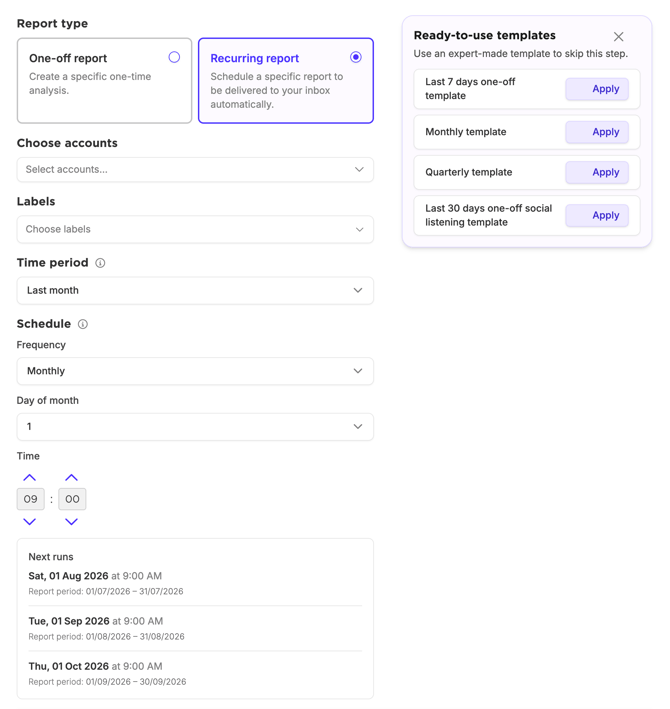
Frequency
The frequency is set by the time period you chose. If you selected Last month, the frequency will be Monthly.
Day of month
Choose which day of the month the report runs. For monthly reports, the 1st of the month works well. Your team gets the previous month’s data right at the start of the new one.
Time
Use the time picker to set the hour and minute. Times use your Sked Social account’s timezone.
Next runs preview
After setting the day and time, a Next runs box appears with upcoming scheduled dates. Check this before saving to make sure the cadence looks right.
Example: A monthly report set to run on the 1st at 09:00 will show upcoming dates like 1 Aug 2026 09:00, 1 Sep 2026 09:00, and so on.
Completing the setup
Once the schedule is set, continue with the standard steps. Nothing here has changed:
- Notification recipients: who gets notified when the report is ready
- Report name: give the report a clear, descriptive name
- Branding: optionally add your brand name and a “Prepared by” name
There are no changes to the page selection or any other settings on subsequent steps.
Frequently asked questions
Can I change the schedule after a report is created? Yes. Open the report from the Custom Reports list and edit the schedule settings.
What timezone are run times based on? Your Sked Social account’s timezone. You can check or update this in account settings.
Can I set a weekly or quarterly schedule? Yes. The frequency follows the time period you select. Choose Last week for weekly, Last quarter for quarterly.
I selected a one-off report and can’t see the scheduling options. Switch the report type to Recurring report. The schedule section only appears for recurring reports.