
With review link notifications and reminders, you can now automatically email reviewers the moment posts are ready for their attention. If they haven't acted, Sked Social sends a reminder on a schedule you set. No more manual messaging.
Who is this for?
This feature is available to any Sked Social account who has access to External Review Links. Available on Grow (add-on) and Accelerate (included), and a mix of Legacy plans.
Prerequisites
Before setting up notifications, you'll need:
- Approvals steps set up in Team collaboration settings
- An existing External Review Link in Sked Social
- That link to have a "Posts to review" status configured in its Collaboration settings
If you haven't created a review link yet, see: [link to Create a review link article]
How to add notification recipients to a review link
- In Sked Social, go to Approvals > Board. From there, either click "Approval links" in the top bar then select "Manage links", or click "Links & themes" directly in the left sidebar. Both take you to the same page.
- Find the review link you want to add notifications to, click the context menu (3 dots), and select Edit.
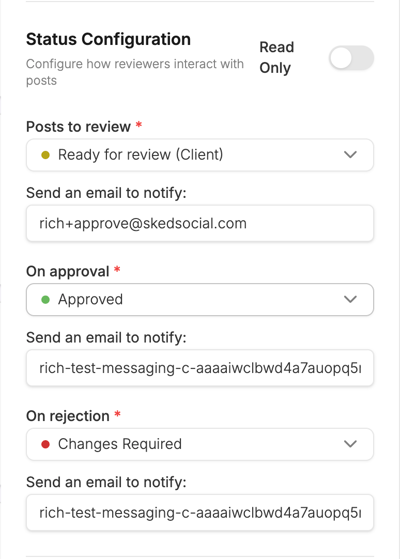
- In the Edit Link slideout, scroll to Status Configuration and find the "Send an email to notify" field under the Posts to review section.
- Enter the email addresses of your reviewers. You can add multiple addresses separated by commas.
- Click Save.
From now on, whenever posts on this review link are moved to your configured "Posts to review" status, those email addresses will receive an automatic notification.
Setting reminder email notifications
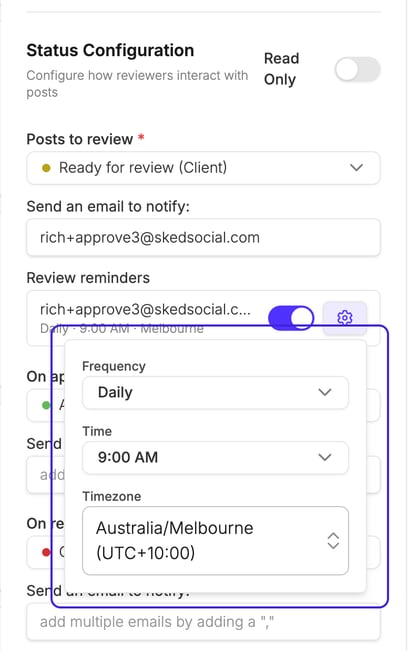
If a reviewer hasn't acted on their notification, Sked Social can send them automatic reminders on a schedule you set. Reminders only send on days when that reviewer has posts at Ready to Review status. They stop automatically once the review is complete.
Reminders are configured per reviewer. Each email address you've added to the "Send an email to notify" field gets its own reminder toggle and schedule.
To set up reminders:
- In the Edit Link slideout, scroll to the Review reminders section, directly below the "Send an email to notify" field. Each email address you've added appears here with a toggle.
- Toggle on the switch next to the reviewer you want to configure. The row expands to show a summary of the current schedule (for example, "Daily · 9:00 AM · Melbourne").
- Click the gear icon (⚙️) next to that reviewer to open their reminder settings.
- Set the Frequency: Daily or Weekly.
- Set the Time you want the reminder to send.
- Set the Timezone — either your own or the recipient's.
- Click Save.
Repeat for any other reviewers on the same link. Each one can have a different schedule.
Note: Reminders only fire when that reviewer still has posts at Ready to Review status. If there is nothing waiting, no reminder is sent.
What does the notification email look like?
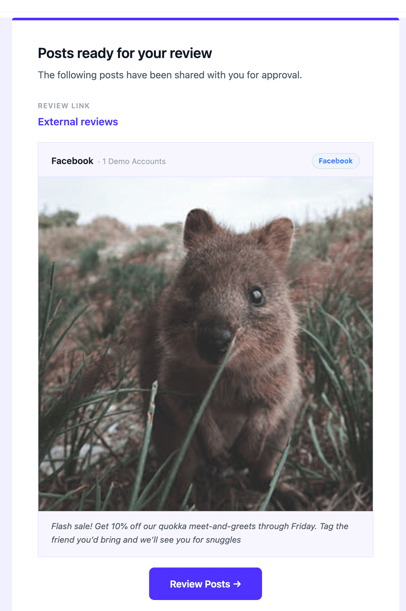
The notification email includes:
- The name of the account/brand associated with the review link
- Group Name and Account name in Sked
- The post caption(s) and platform
- Thumbnail image (Clicking directs to the review page)
- A direct link to the review page
Recipients do not need a Sked Social account to open the link and review the content.
Note: Notifications are batched. If multiple posts are moved to the "Ready to Review" status within the same 5-minute window, reviewers receive one combined email covering all of them — rather than a separate notification for each post.
How to edit or remove notification recipients
- Open the review link and click Edit.
- Update or clear the email addresses in the "Send an email to notify" field (under Status Configuration > Posts to review).
- Click Save.
Changes take effect immediately.
Troubleshooting
The notification isn't being sent.
- Check that the review link has a "Posts to review" status configured under Status Configuration.
- Check that the Brand Group is subscribed to "Status Updates" workflows. You'll need "Manage Social Accounts" user access to make changes.
- Check that there is at least one email address saved in the "Send an email to notify" field (under Status Configuration > Posts to review).
- Check that the post's approval status was actually moved to the correct "Posts to review" status (not another status).
- Ask your reviewer to check their spam/junk folder.
- Note: Drafts won't trigger Review notifications or reminders. Only scheduled posts with a time and date.
The email address I added shows a validation error.
- Make sure each address is a valid email format.
- Make sure multiple addresses are separated by commas with no extra spaces.
My reviewer received a notification but the post wasn't on the review link when they clicked through.
- If the post status changes, the notification email isn't recalled. If the post was moved back from "Ready to Review" to a status that isn't shown on the link before your reviewer clicked through, the post won't appear on the review page.
I want to notify my reviewer on approval or rejection as well.
- The "Send an email to notify" field under Posts to review covers the ready-to-review step only.
- For approval and rejection notifications, look for the "Send an email to notify" fields under the "On approval" and "On rejection" sections in Status Configuration, these are separate from the Posts to review field.