
Pins and text highlights work across three surfaces: the external approval link, the internal dashboard, and the media editor.
External annotations
External markup on approval links is part of the Advanced Approvals entitlement. To enable it for a specific link, turn on Show annotations + highlights in the Approval Link Settings for that link. When the toggle is on, the reviewer's experience switches to annotation mode in place of the standard preview.
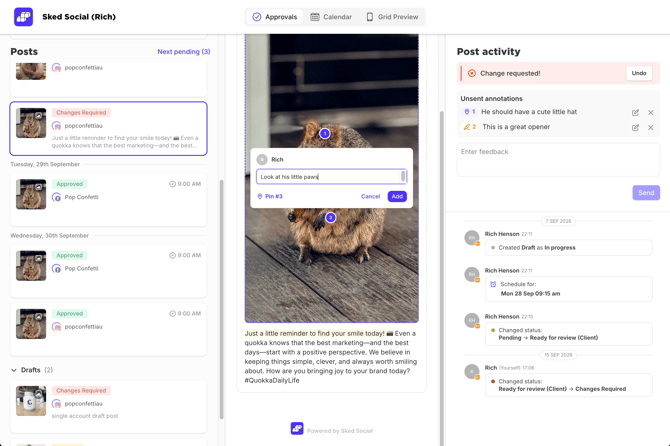
When making a change request, the external reviewer can:
- Click any point on an image or video to place a numbered pin and attach a comment
- Select a range of caption text to highlight it and add a comment
No login required. Pins are numbered and stackable; text highlights stay visible in the activity feed alongside the comment.
Feedback lands in Sked Social labeled by type and linked directly to the pin or highlighted text it refers to – so your team knows exactly what to look at before they start revising.
Note: Annotations can only be left of a change request.
Internal annotations
Your team can annotate posts from inside the dashboard without leaving the post feed.
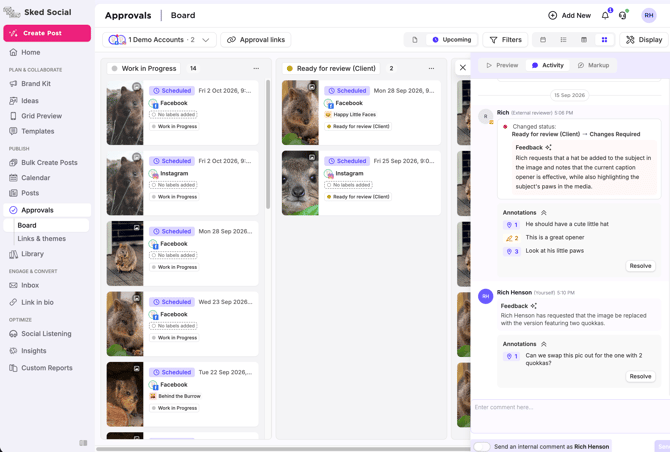
Open any post and go to the Markup tab in the teamwork panel. From there, select Pin to click a point on the image or video and leave a comment, or select Highlight Text to select a caption range and attach a comment.
Internal markup is available to all users on all plans. Annotations appear in the shared activity feed alongside plain comments and status changes, so the review history stays in one place.
Resolving feedback
When a Change Requested submission includes annotations, each pin or highlight has a Resolve button. Resolving marks that item as addressed and logs it in the activity feed.
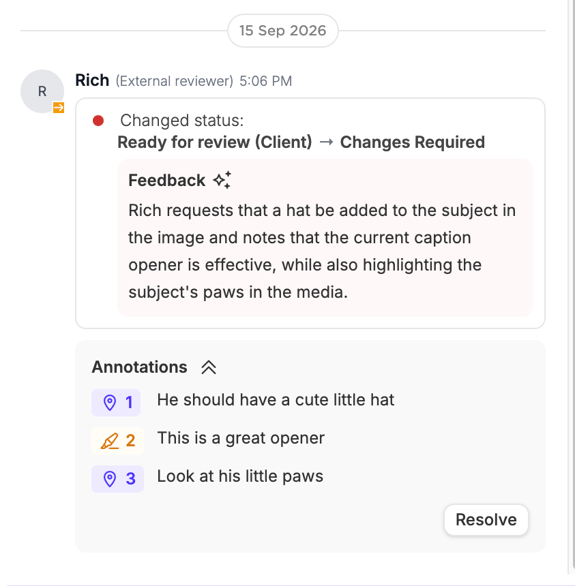
Posts can progress through the approval flow and be published with outstanding annotations – resolving feedback is separate from the approval decision. Use it to track what has been acted on, not to gate publishing.
Resolved annotations are collapsed by default but remain in the post history. If something is resolved in error, it can be reopened.
AI feedback summary
When an external reviewer submits a Change Requested with annotations but no general comment alongside them, Sked Social automatically generates a plain-English summary of the feedback and attaches it to the activity entry. The underlying pins and highlights remain fully visible.
The summary is useful when a client places several pins on an asset without writing up their reasoning – you get an at-a-glance read on what they flagged before you open the media editor to act on it.
Need help?
Our support team is available 24/7. Start a chat from the help icon in the bottom left of your screen.