
Trending audio can do a lot of work for your Instagram Reels, but since you need to add it directly on Instagram, you can't rely on auto-publishing alone. Here's how to use Sked's notification post feature to schedule your content with trending audio!
Why notification posts?
Instagram's API doesn't allow third-party tools to add audio to Reels. So when you want to use a trending sound, the workaround is to use notification posts in Sked, and then finish publishing through the Instagram app when the time comes.
Sked sends a push notification to your phone at the scheduled time. You open it, Sked downloads your assets to your device, copies any notes or captions, and opens Instagram — all you need to do is add the audio and post.
Before you start
Make sure you've done these two things:
- Downloaded the Sked mobile app — available on iOS and Android
- Enabled push notifications on your phone
Step 1: Set up who gets notified
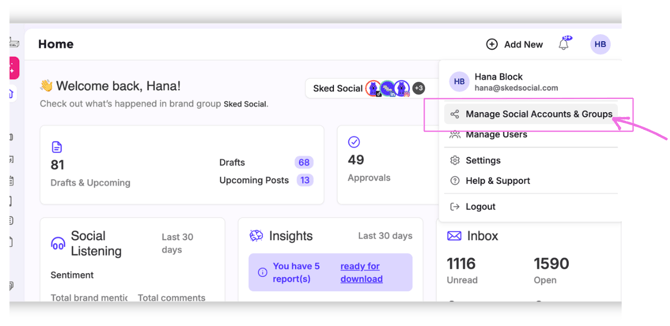
You'll need to tell Sked which user should receive the push notification when it's time to post.
- Go to Settings>Manage Social Accounts & Groups in Sked
- Select the Instagram account you're setting up
- Scroll to the Notifications section
- Select the user from the dropdown who'll receive the notification at post time
You'll need to do this for each Instagram account in your workspace. If the right person isn't in the dropdown yet, add them under the Users tab first.
Step 2: Schedule your content as a notification post
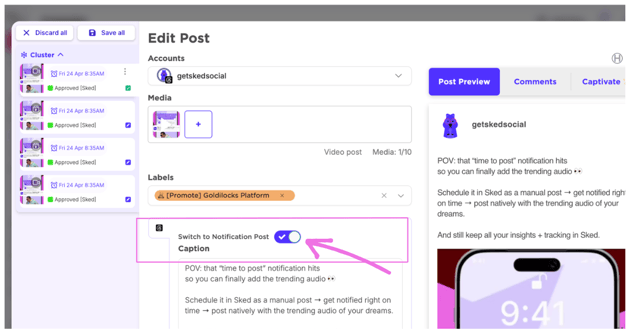
When you're uploading your Reel in Sked:
- Upload your video and write your caption as usual
- Toggle on the Notification Post button
- Select Reel from the content type dropdown
- Optionally, scroll to the the bottom of the card to add a note under Notes for manual publishing — this is a handy spot to remind yourself which audio to use, what caption you’ll be using, or any other finishing touches
Once scheduled, the post will appear in your upcoming posts with a label showing it's set to publish manually.
Step 3: Publish with trending audio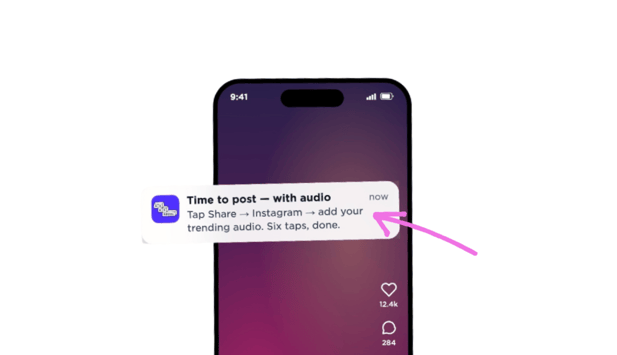
When your scheduled time arrives, you'll get a push notification on your phone.
- Open the notification — the Sked app will open straight to your post
- Select Share and Sked will download your assets, copy your notes to your clipboard, and open Instagram
- In Instagram, add your trending audio
- Post
That's it. Your content was planned and scheduled in Sked, with you just needing to add the finishing touches on Instagram.
A few things to keep in mind
- The push notification goes to whichever user is assigned under that account's notification settings — make sure that's the right person (or you!)
- You'll need to be near your phone at the scheduled time to post manually
- You can add much more than trending audio with notification posts (stickers, polls, etc..)!