
.png?width=564&height=271&name=Social%20case%20study%20carousel%20(2).png)
Sked automatically prevents accidental edits to media that’s already attached to drafts or upcoming posts. All edits are stored in a separate design file, so your original assets remain untouched — and you can return to refine your work at any time.
When using the Video and Image Editor on Sked, different behaviors will apply to saving your changes depending on:
- Where you're editing — Library or Create Post
- Whether the media is already used in a draft or upcoming post
Saving Behavior: Quick Reference Table
The table below summarizes the three possible editing scenarios:
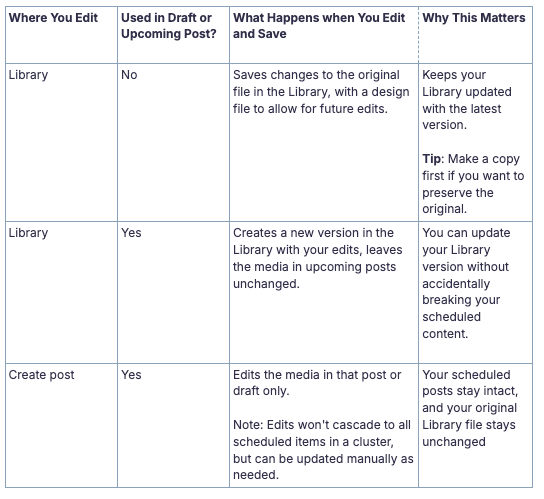
Media Editing Behaviour
🔎 Scenario A: Editing From the Library
.png?width=509&height=310&name=Social%20case%20study%20carousel%20(1).png)
-
Editing Media from your Library that is NOT used in any draft or upcoming post
- Opening and making edits in the library will always make and save changes directly to the original media asset.
- A design file is kept in the background and your edits are non destructive, meaning you can always reopen and continue editing later
- To keep the original file untouched, we recommend making a copy in your Library before editing
- Editing Media from your Library that IS used in a draft or upcoming post
-
- The editor automatically creates a new version in your library and you edit that new version
-
- The media in your scheduled posts stays unchanged
- Note: Media that's being used in a draft or upcoming post will display an icon in the bottom left hand corner on the thumbnail indicating its linked to scheduled content
This prevents accidental modifications to already-approved or already-scheduled content.
🔎 Scenario B: Editing from within Create Post
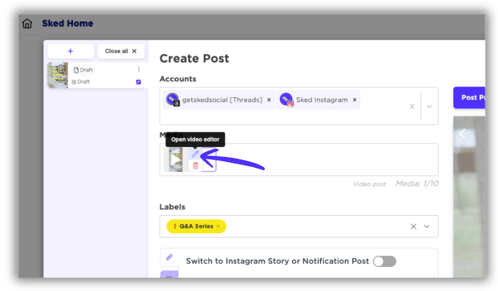
- When you edit media inside the Create Post window:
-
- You are always editing the version attached to that post or draft only
- Changes do not affect the original source file in your Library
- Other posts using the same media stay unchanged
Important Bulk Create note: If the same media appears in multiple posts within a Bulk Create cluster:
- Edits made in one post do not cascade to the others
- You can update them manually if needed
Non Destructive Editing
Sked's Video and Image Editor uses fully non destructive editing.
This means whenever you save an edited video, we won’t overwrite the original file with the new edits - we will save a project file (hidden) in your library, allowing you to pick up the video again with full creative control in the future.
This means if you need to create variants, make changes to accomodate last minute requests or even fix a small error, we’ll load your project file with the timelines in place.
Why is this important?
We've all been stuck before needing to make tiny creative changes. But some editors overwrite original files, making it impossible to undo or redo your work without starting from scratch once you locate the original video file.
Non-destructive editing solves that and lets you keep moving through your editing process. Without having to worry about extensive version backups or accidentally destroying the original file in the process.
📚 Related Resources
- Video Editing on Sked: How to, common actions & FAQs— Get step-by-step instructions on using every available feature, from trimming to adding filters.
- Media perfected? Now, Let’s Bulk Create It — Instantly turn that secure, finalized media into multiple scheduled posts in one go across all your accounts, platforms, and publishing windows. No need to post one-by-one.