
Whether you're jotting down a quick thought in your Scratchpad or developing fully-formed content briefs in your Workspace, Ideas provides the structure and flexibility you need to maintain a consistent, on-brand social presence. With built-in AI powered by your unique Brand Kit—including your Brand Description, Tone of Voice profiles, and Content Pillars—every idea you generate is tailored specifically to your brand’s voice and strategic goals.
This guide will walk you through everything you need to know to get started, from initial setup to creating and scheduling your first posts.
Accessing Ideas
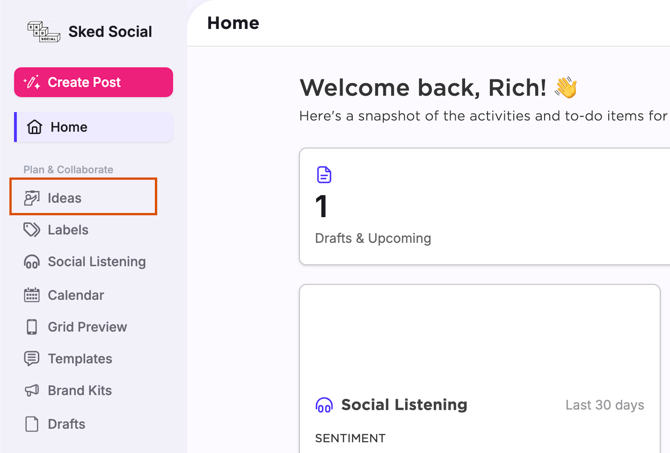
To open Ideas, head to the navigation bar on the left-hand side. You’ll find Ideas at the top of the list, directly below the Create Post button.
This opens your brand-new workspace where you can capture thoughts, use AI to generate on-brand concepts, and approve ideas for your creative pipeline.
Getting started with Ideas
When you open Ideas for the first time, a setup wizard will appear and configure your selected group with a Brand Description, your first Tone of Voice (TOV) profile, and your Content Pillars.
Note: Ideas works best when these items are completed. You won’t be able to access the workspace without finishing this setup, but don't worry—it only takes about 60 seconds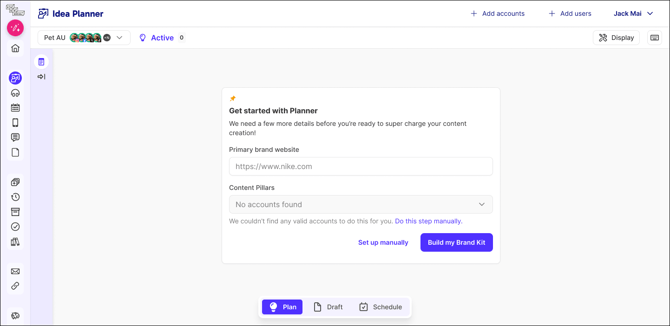
The wizard is a streamlined version of the full setup options found in Sked’s new Brand Kit. While designed for quick onboarding, you can always access the dedicated Brand Kit settings later to add more TOV profiles, refine your description, or customize existing kits.
Brand Description
The Brand Description acts as the foundational context for every AI generation request, and added alongside your TOV profiles.
It anchors the AI's knowledge base, providing it with essential facts about your products, services, and value proposition. We recommend keeping this description concise (under 200 words) but specific, focusing on your unique selling points and target audience.
Pro Tip: You can generate this description automatically by entering one or more URLs. We’ll do the heavy lifting and convert the webpage content into a usable summary.
Tone of Voice
What is Tone of Voice (TOV) Detection?
Ideas includes built-in Tone of Voice (TOV) Detection to ensure AI-generated content sounds like your brand, not a generic template. By analyzing your website, brand guidelines, or past social media posts, the system builds a unique Voice Profile for your brand.
This profile captures your specific nuances, from your regional spelling, (e.g., Color vs. Colour) and emoji habits to your sentence structure and "banned" words and even your usage of the em-dash. We then apply this profile to every draft caption or brief you generate within Ideas, ensuring the AI writes in your authentic voice from day one.
A Tone of Voice Profile can be created from:
- A website (or multiple URLs, including blogs and product pages).
- An uploaded Brand Guide (PDF).
- Pasted sample writing.
- Your past social media content.
Note: Sources can have narrow or broad dialects. We recommend using examples that match the specific style of the content you want to output.
Content Pillar Detection
We’ll analyze your past posts to detect the content pillars you are already using. Simply select the accounts you want to analyze, and we’ll do the rest. You can select all accounts at once; the AI intelligently handles post duplicates or cross-platform variations to identify your likely strategy.
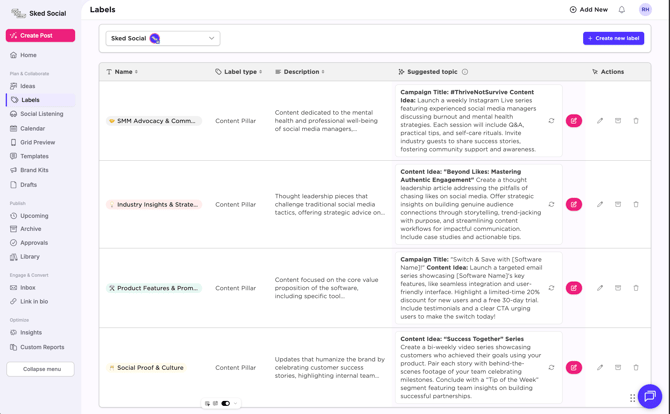
You can view and edit these under Labels if your strategy changes, or manually add more if the auto-detect missed something. You can even re-run the auto-detect at any time to stay up to date.
Introduction to the Ideas workspace and workflow.
The Ideas tool is composed of two primary spaces: the Scratchpad on the left and the Workspace on the right.
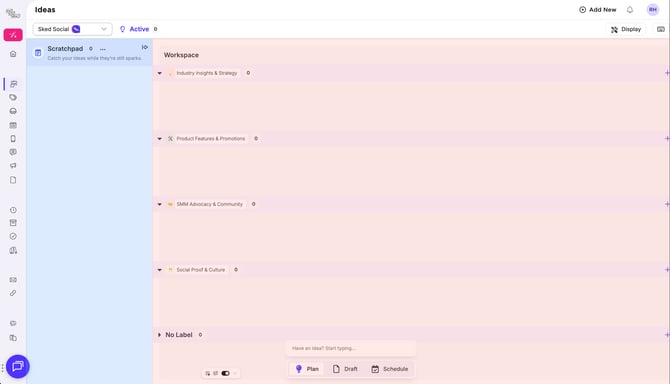
Scratchpad
Think of this as an "inbox" for your thoughts. It’s a place for topics, inspiration, or rough post concepts. These aren’t full posts yet—they might lack media, need refinement, or just be a "spark" of creativity you want to save for later.
When you’re ready, you can assess and expand on these ideas using your own expertise or team feedback. Once you’ve filtered out the winners, move them to the Workspace to continue the creative process.
Note: By design, some fields are locked while an idea is in the Scratchpad. Move it to the Workspace to unlock the full suite of editing tools.
Workspace
To the right of the Scratchpad is your active Workspace. Here, you can work solo or with your team to bring ideas to reality.
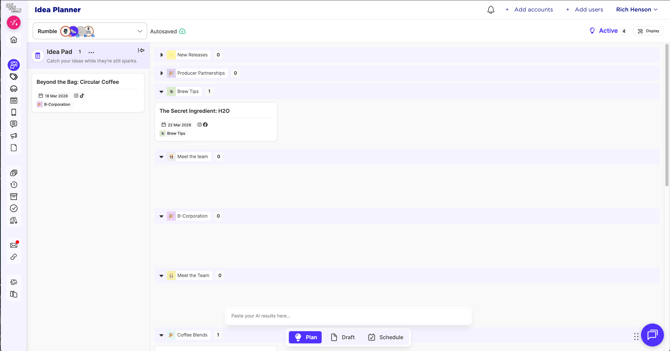
The default view uses Content Pillar swimlanes, providing a holistic view of your content categories.
- Drag and Drop: Move an Idea card between swimlanes to automatically re-assign its label.
- Multi-Pillar: If an idea has two content pillars assigned, it will appear in both rows.
- Alternative Views: The workspace also supports swimlane views for Assignees and Campaigns.
Idea Creation and AI Create
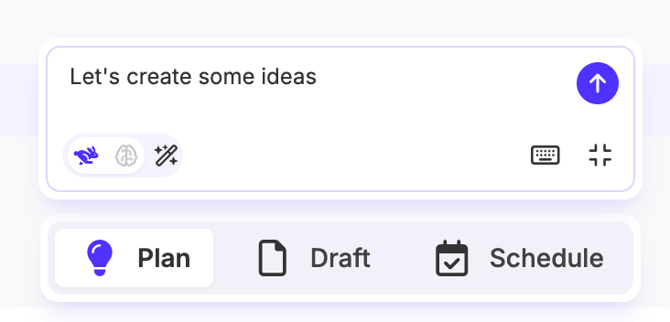
The Ideas Box is your shortcut for fast, smart entry. It uses built-in AI to generate brand-specific ideas or map pasted text directly into Idea cards. The box dynamically switches modes and sizing based on what you enter.
Command Support:
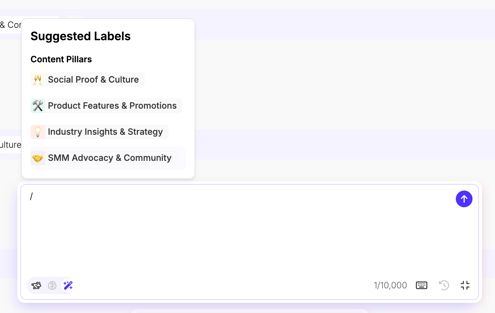
- Use
/to open a list of Content Pillars.
- Use
@to open a list of users to assign to a card.
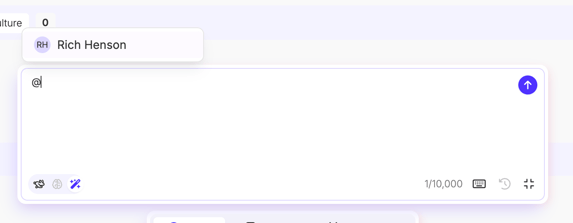
Quick and Smart Create
We've create multiple modes to help you get your ideas in faster, whether you are firing off quick entries or pasting in swathes of text from your notes app, we'll handle whatever you throw it it, and automatically alternate between these modes as needed.
- Quick Create: Enter short text to turn it into a card title. You can quickly attach labels or people using keyboard shortcuts.
- Smart Create: If you enter a longer paragraph, the system will synthesize a short, clean card title and move the full text into the Topic and Details fields automatically.
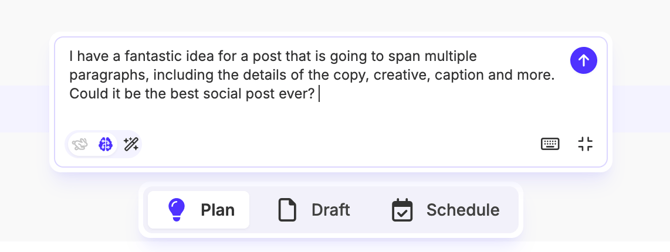
AI Create
Clicking the AI toggle or using shortcuts (⌘ + Shift + M on Mac or Ctrl + Shift + M on Windows) expands the text area and increases the character limit for generative requests.
AI create includes 2 modes; Generate and Transform. We identify the users intention based on the input and language used to intelligently process your request, all running through the latest version of Google Gemini 3.
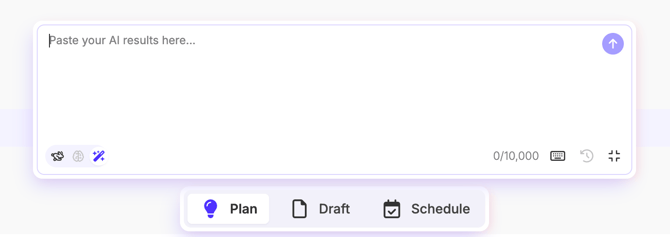
AI Create Capabilities
- Creation: Requests containing phrases like "create," "write," or "generate" "give me" will build new ideas from scratch. You can specify platforms (e.g., "Generate 3 Instagram carousels about our new sale") or request suggestions for key dates in the next 90 days.
- Transforming: Longer requests starting with phrases like "process," "parse," or "convert" or "transform" will take your text (even from external docs or custom GPTs) and map it into distinct sections like Topic, Draft Caption, and Creative Briefs.
AI Create is powered by the latest versions of Google’s Gemini 3, balancing speed and creativity to ensure you never have to cut and paste individual fields again. Just bulk paste and go.
Generate Ideas
Generative Example Prompt: “Give me 3 ideas for posts for the coming week across any of my content pillars”
When making generation requests, we'll automatically detect platforms, quantities, styles and apply your brand TOV to the Ideas Generated.
If you have added a Content Pillar using the / command, we'll only generate ideas within that content pillar.
| Request | Content Pillar | Platforms | Note |
|---|---|---|---|
| Write me a post on [Subject] | Self Assign or AI Detect | AI Detected | |
| Write me a post for [X platform] based on [Article URL] | Self Assign (or will ignored if requested) | AI Detected | Notes: the ability for the contents of the URL to be read and include is coming soon. |
Sample Prompts and Results - Coming soon
Transform
Pasting into large sections of Text into AI Create is great way to bulk import ideas from external sources, like Google Docs or Sheets, post ideas generated with ChatGPT or Gemini, or just a list of things someone has texted you.
Just paste and hit go, we’ll handle the rest.
AI Create will transform and intelligently map the contents into single or multiple ideas, including smart mapping Idea fields like Topic and Details and Draft Caption. It will also assign content pillars from your labels based on the content if there is a good fit, and won’t if there’s no matches.
Transform Request:
Convert this text into Ideas:
[a large block of text pasted in from ChatGPT or Excel/Sheets/Word
Both Generate and Transform requests will populate the same fields inside the idea. Transform will only complete what is accurately matchable. Any unmatchable information that doesn’t have a clear mapped field will be added to “Topic and Details”
Editing an Idea
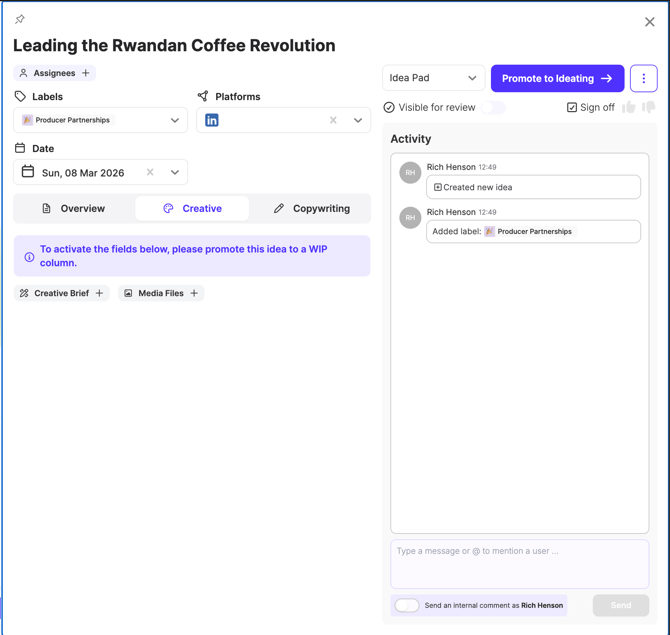
Click any card to open the Slide-out Editor. Options for Dates, Assignees, Labels, and Platforms are available in both the Scratchpad and Workspace.
- In the Scratchpad: You can edit the Topic & Details, Hashtags, and Media Assets for concept exploration.
- In the Workspace: Click "Add to Workspace" to promote the idea and unlock copywriting and creative brief fields.
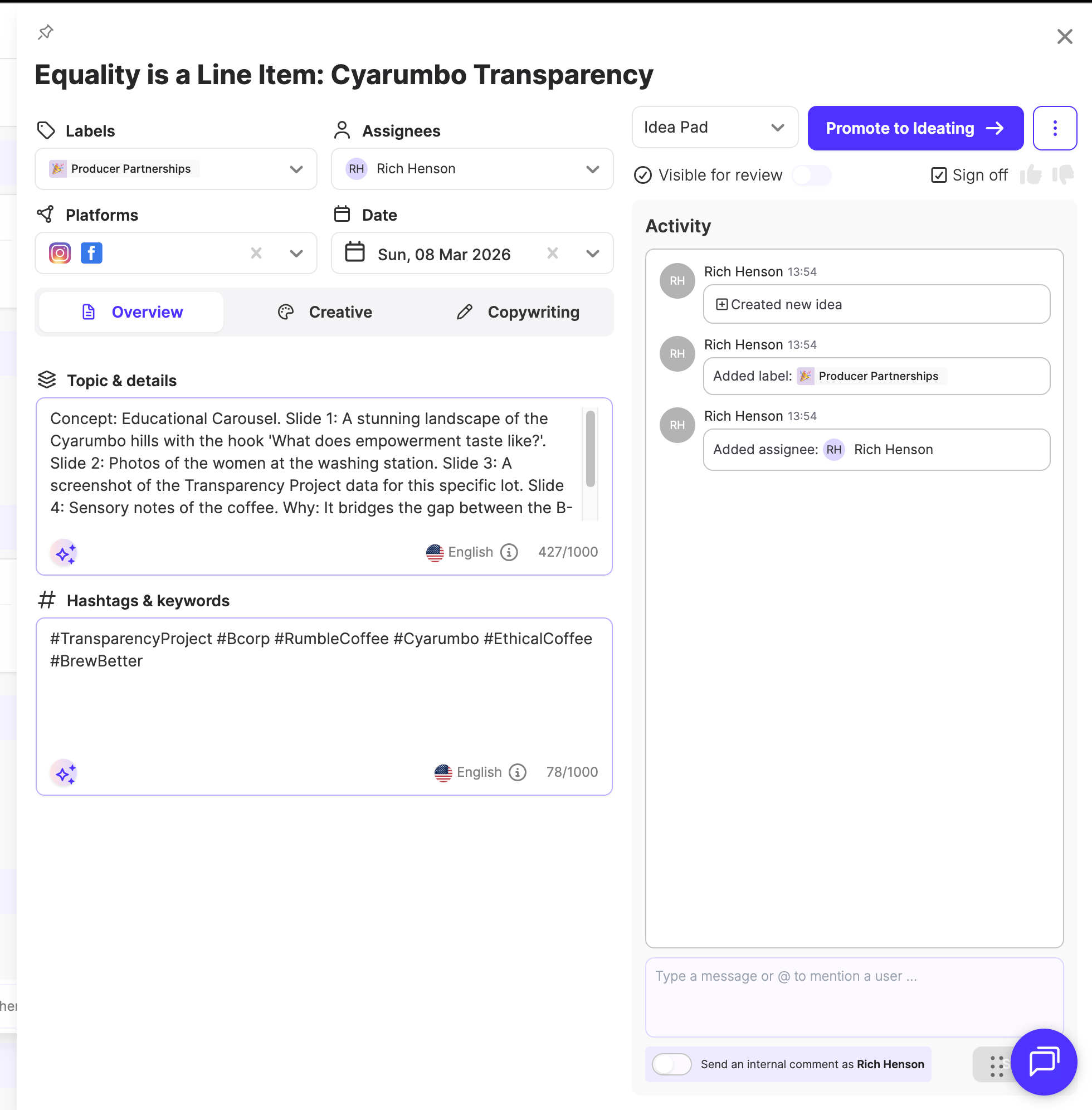
Note on account selection: In Ideas, you select Platforms (e.g., Instagram) rather than specific Social Accounts. We’ll map these to your actual accounts when you convert the idea into a post.
Only one brand group can be viewed at a time.
Saving and Multi User editing
Ideas brings many behind the scenes changes along with new workflows, with one of the biggest changes is live saving and updating, so you never have to worry about working on an old version or saving over someone else’s work.
There is no "Save" button, everything updates automatically as you go.
The top bar above the workspace has a cloud indicator showing connectivity to Sked’s servers, so you’ll know you’re always up to date.
Using Generative functions inside Ideas Edit
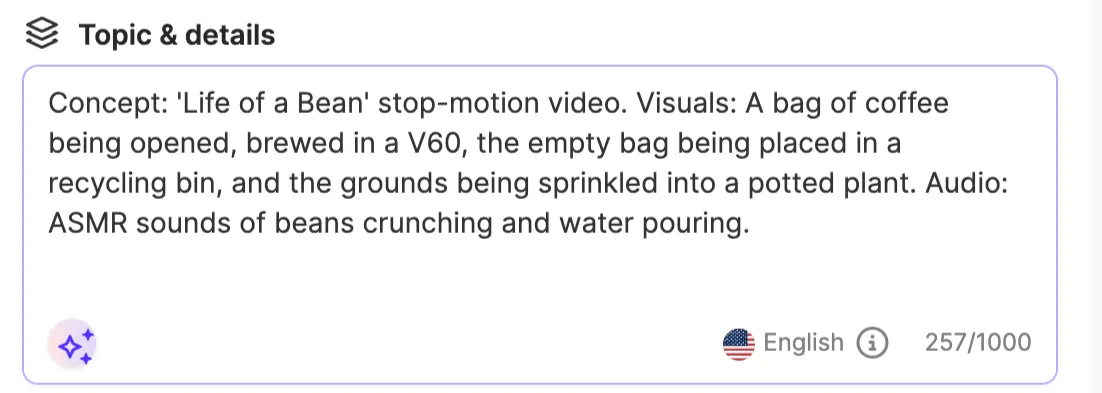
Each section of the Idea editor supports generative functions to help you build out ideas from simple bullet points.
The Generative tools have been built work with your existing contents and expand, or regenerate when appropriate.
- First Click: The "Generate with AI" function autocompletes the box by layering in context from your Brand Kit and Content Pillars. It’s designed to build on your notes, not replace them.
- Second Click: Clicking again will "Regenerate," providing a different angle while message maintaining consistency.
Note: The Topic & Details and Content Pillar fields provide the strongest guidance for subsequent fields like captions.
If you find you are getting similar or the same outputs on generate requests, change some of the upstream information, like topic and details to be more broad.