
No more staring at a blinking cursor; Ideas bridges the gap between a random "spark" and a published post, using built-in AI that actually sounds like your brand.
Getting Started with Sked Ideas
Welcome to Ideas—your dedicated workspace inside Sked for capturing, developing, and launching social media content. No more staring at a blinking cursor; Ideas bridges the gap between a random "spark" and a published post, using built-in AI that actually sounds like your brand.
1. The 60-Second Setup
When you first open Ideas (found right under the Create Post button), a quick guided set up will get you ready in about a minute. You’ll configure three core elements:
.png?width=670&height=503&name=image%20(109).png)
This helps Ideas generate on-brand, relevant outputs from day one.
-
Brand Description: A concise summary (under 200 words) of what you do and who you serve. Paste a URL, and we’ll write it for you.
-
Tone of Voice (TOV) Profile: Our AI analyzes your website, brand guides, or past posts to learn your "voice." It picks up on everything from regional spelling to your favorite emojis and em-dash habits.
-
Content Pillars: We’ll scan your past content to detect your recurring themes. You can edit these later under Labels.
2. Scratchpad vs. Workspace
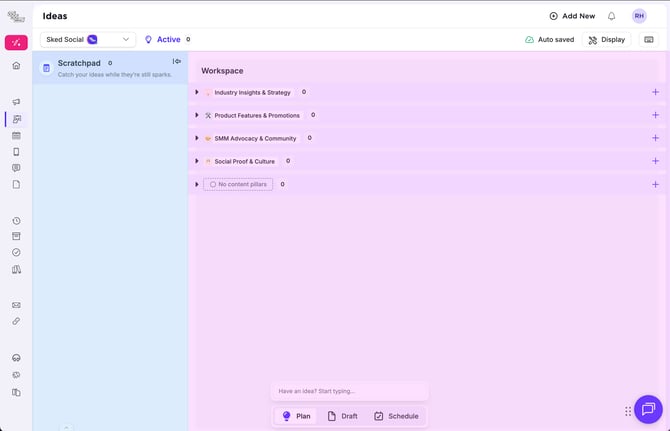
The Ideas tool is split into two primary areas to match your creative flow:
-
The Scratchpad (Left): This is your digital "inbox." Use it to capture rough thoughts, half-baked inspiration, or quick notes. Some fields are locked here to keep things simple—it’s about the spark, not the finishing touches.
-
The Workspace (Right): When an idea is ready for prime time, move it here. You’ll see "swimlanes" (columns) organized by Content Pillar, Campaign, or Assignee. You can drag and drop cards to change labels or owners instantly.
.png?width=670&height=466&name=image%20(110).png)
3. AI Create: Generate & Transform
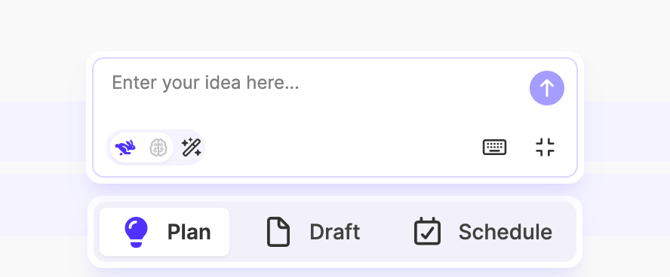
The Ideas Box at the bottom is where the magic happens. Drop in rough thoughts, paste inspiration, or ask AI to generate and refine ideas. Everything you enter here is automatically saved to your Scratchpad.
It’s smart enough to know what you need based on what you type:
-
Quick Create: Type a short sentence to create a card title.
-
Smart Create: Paste a long paragraph, and the AI will summarize a clean title while moving the full text into the "Topic and Details" field automatically.
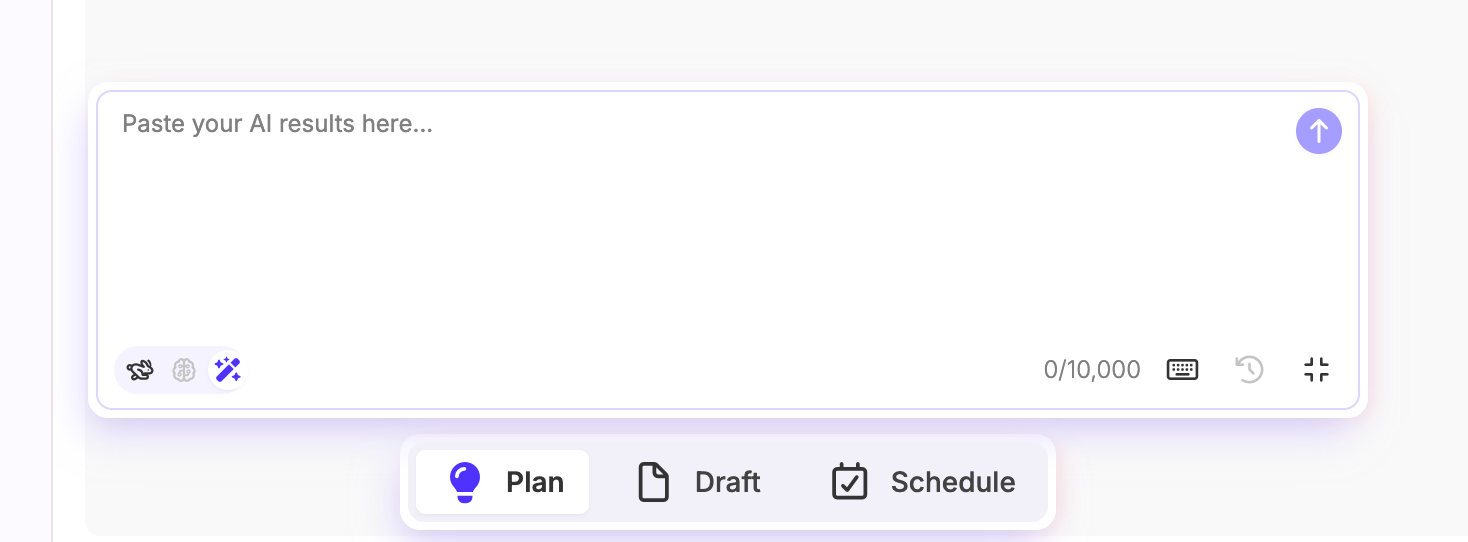
AI Create (⌘/Ctrl + Shift + M): Toggle this mode to use generative AI
-
Generate: Ask for something new. “Give me 3 post ideas about our new summer sale.”
-
Transform: Paste up to 10,000 characters from a meeting transcript or a Google Doc. We’ll parse the mess into organized, actionable Idea cards.
Pro Tip: Use shortcuts like
/to assign a Content Pillar or@to tag a teammate while you’re typing in the Ideas Box.
4. Refining Your Ideas
When you move an idea from your Scratchpad to the Workspace, it becomes collaborative and ready for refinement.
Click any card to open the Slide-out Editor. This is where you structure and prepare the idea for execution. All changes update live. No "Save" button is required, just look for the cloud icon in the top bar to confirm you’re synced.
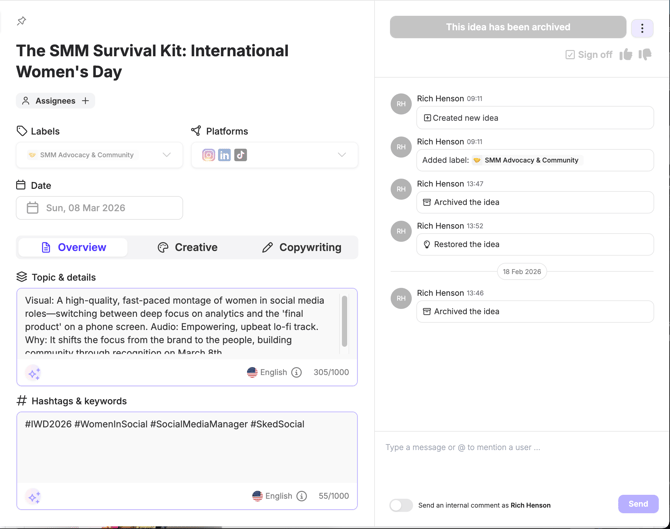
From here, you can:
-
Platform Selection: Instead of picking specific social accounts, you select Platforms (e.g., Instagram). We’ll handle the specific account mapping when you’re ready to schedule.
-
Sign-off: Use the Thumbs Up/Down system for quick vibe or strategy checks and informal team approvals without the need for a formal workflow.
-
Assignees & Date: Assign owners and set target dates to keep ideas moving forward.
-
Labels & Keywords: Apply Content Pillars or labels, and add hashtags or SEO keywords for structure and discoverability.
-
Creative & Copywriting: Expand on the topic, build creative or copywriting briefs, attach media, and draft captions.
5. From Idea to Published Post
When you're ready to go live with an idea, click Create Post. This moves your content into the Bulk Create window:
-
One Idea, One Post: Maps your draft caption, media, and platform selection into a single post.
-
One Idea, Multiple Variations: Ask the AI to produce caption variants based on your Idea, perfect for creating a series of evergreen posts or testing different hooks.
6. The Brand Kit & Custom Instructions
If you want more control over how Ideas generates content, you can adjust your Brand Kit and Custom Instructions.
The Brand Kit is the "brain" behind the AI. Here, you can manage multiple TOV profiles (e.g., one for "Professional LinkedIn" and one for "Cheeky TikTok").
If the AI's outputs feel too long or complex, you can edit the Copy and Creative Brief Frameworks. These custom instructions guide the AI's structure, ensuring the results meet your specific standards every time.
7. Calendar & Integrations
-
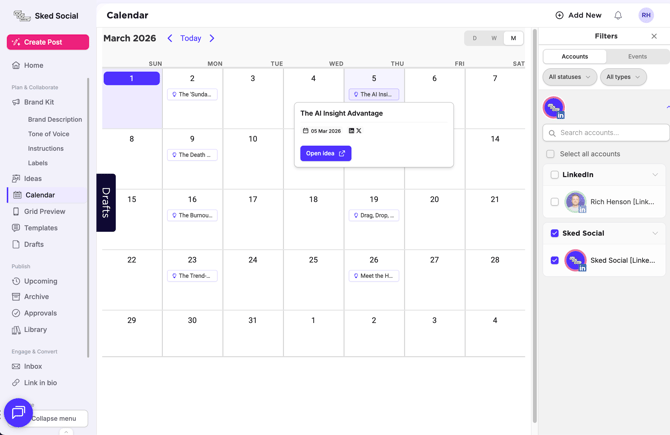
Calendar View: By default, ideas with a date appear on your Sked Calendar alongside scheduled posts. This helps you spot content gaps weeks or months in advance.
Read more on Creating and Viewing Ideas from the Calendar
-
Zapier: Use our Zapier integration to automatically create ideas in your Scratchpad from tools like Notion, Slack, or Google Sheets. Smart Create will organize them automatically.
To explore more integration options, see our full Integrations guide.